
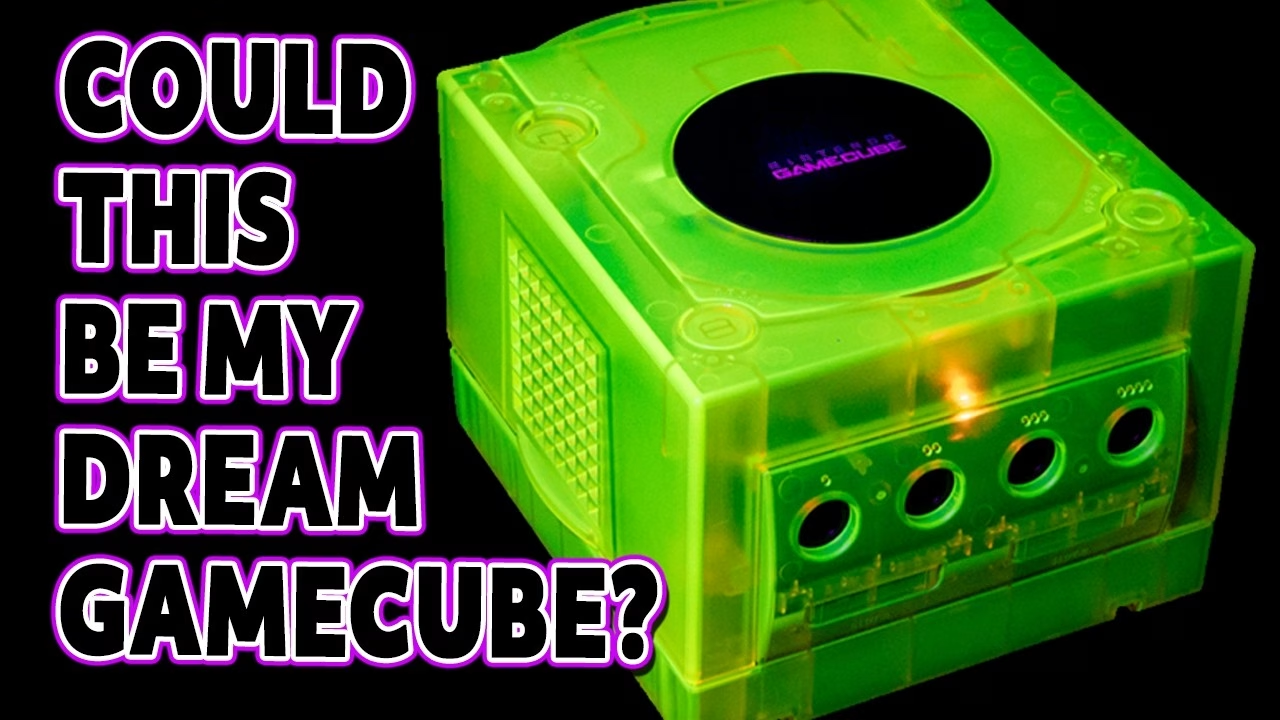
This Nintendo GameCube arrived as a carrier bag full of parts: a smashed shell, a rusty-looking shield, a scruffy disc drive and a front panel with its ribbon cable torn clean off. It turned out to be the sought-after DOL-001 with the digital AV port, so it was worth saving. In this project I find out why it was thrown out, repair the front panel ribbon, rebuild it in a £12 acid yellow shell and fit a FlippyDrive optical drive emulator from Team OffBroadway so it can load ISO files from an SD card while keeping the original disc drive working. This video was supported by Holy (more on that at the end).
What was in the bag?
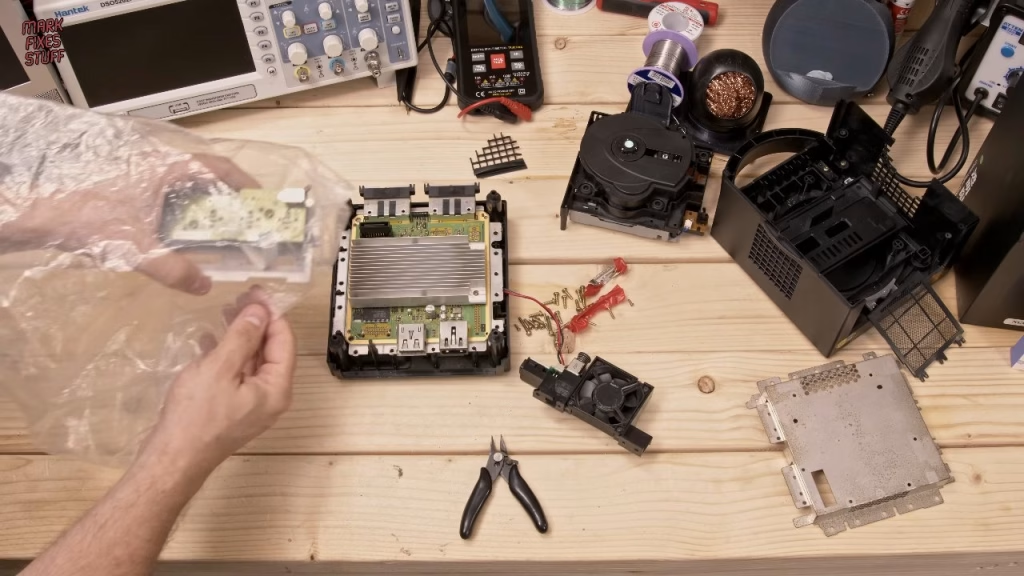
The bag came from Wayne Robbins (Retro Robbins on YouTube). The shell was broken on one side and smashed in on the other, and there was a composite cable cable-tied to the handle, a bag of screws, the back panel (identifying the digital AV DOL-001), shielding speckled with rust, the disc drive and the motherboard. Then the front panel showed what had happened: its ribbon cable had been torn off, leaving no controller ports.
First power on test
Before fixing anything I wanted to know the board was alive. With my known-working GameCube power supply and that composite cable, I powered it up without the fan (it’ll run a fair while without airflow over the heatsink), and we had output.
The disc drive plugs straight into a connector on the board (no fiddly flex cables), and with the lid switch held down the disc spun up. It wouldn’t boot the game, though: the date and time settings had been lost because the battery that keeps them lives on the front panel along with the controller ports. So the ribbon had to be fixed before I could test anything else.
Repairing the GameCube front panel ribbon cable
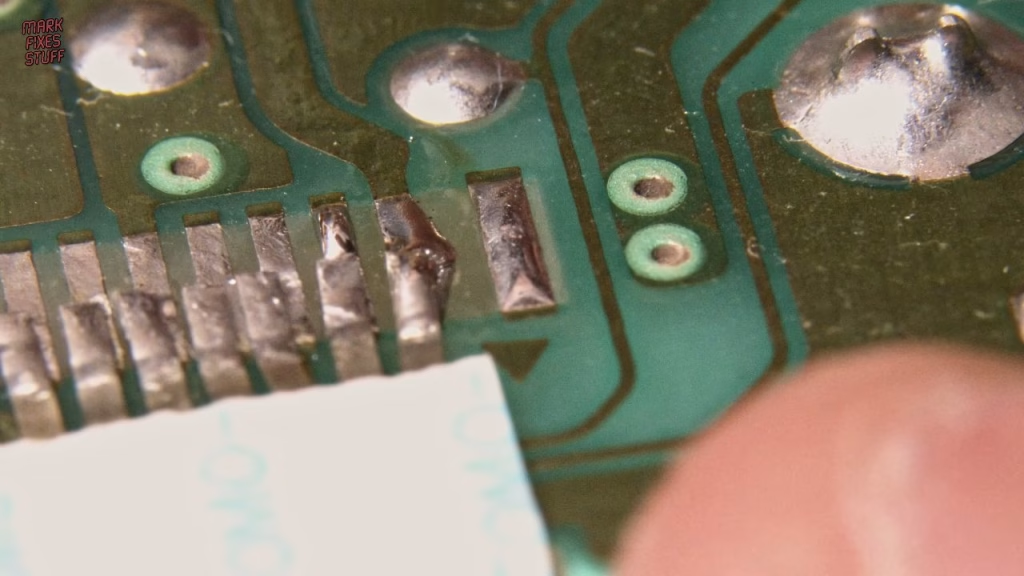
With the front panel in a PCB holder, I cleaned up the area, added no-clean liquid flux and reflowed the old solder so the desoldering wick would lift it properly. I wasn’t after perfectly flat pads, just flat enough to work with. The bent ribbon conductors got straightened with tweezers.
I tinned the pads, checked the cable was the right way up, tacked the two outermost wires first and worked inwards, settling for functional over beautiful. Then I reflowed and picked out solder balls with a sharp scalpel. It’s hideous, but it’s not too bad.
Plugging in a controller, the console got past language selection, every button worked, and the disc drive (really just a DVD drive, as GameCube discs are small DVDs) read and booted Super Monkey Ball, with the video streaming smoothly and the audio spot on. I added UV-curing glue for some strain relief, although I can’t say it was hugely effective in the long run.
A £12 acid yellow GameCube shell
I normally go for purple or smoke grey, but this shell was on a freak AliExpress sale at £12 delivered, and it’s genuinely fluorescent. It includes back panels for both the digital AV and later single-port models plus the memory card door springs, and the quality impressed me for the money.
Disassembly and a battle with pitted shielding
The main board comes out after six machine screws through the heatsink, then four self-tapping screws into the case; underneath is the power supply board. Keep the support posts if you ever want to screw something like a Game Boy adapter to the bottom.
My ultrasonic cleaner was packed away, so I tried metal polish and then a mini rotary tool on the pitted shielding. Two hours later it looked better but not good, and I left some of it out so it wouldn’t spoil the new case. The rear ports got WD40 Contact Cleaner and a brush, and they were seriously mucky.
Installing the FlippyDrive
The FlippyDrive, sent by Team OffBroadway, is a solderless ODE. Unlike a simple Pi Pico solution, it lets you keep the original optical drive working, so you have your real discs and games from SD card. The board has an RP2 chip and an Espressif ESP32 mini, a USB port for updates, a connector for an optional Ethernet port, and the SD slot. There’s also a plug for consoles with a missing drive, which I didn’t need.
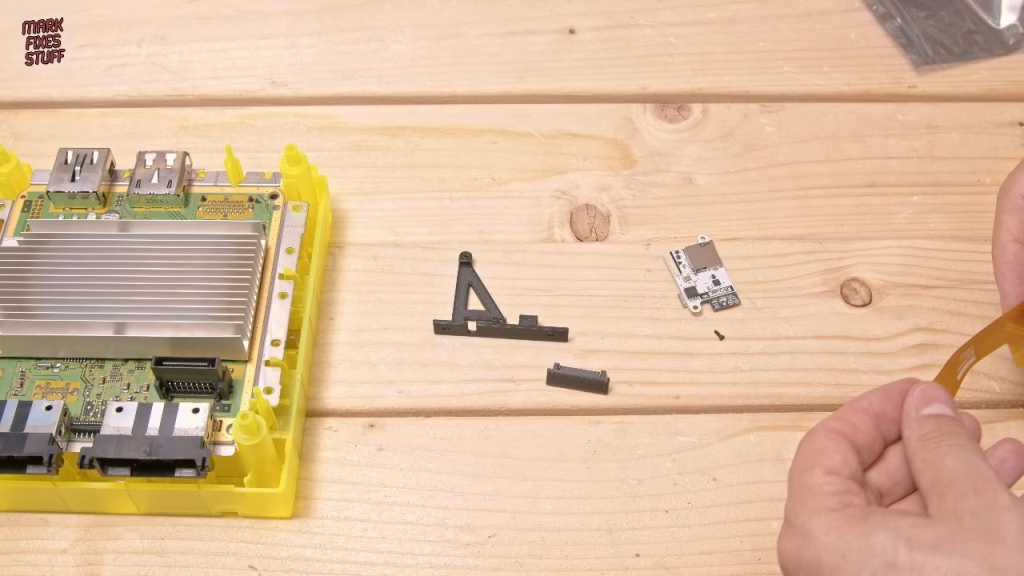
- Fold the solderless cable into a W shape. It feels fragile, but it took a fair bit of oomph without breaking.
- Push it to the bottom of the drive socket, fold the back part down so the heatsink holds it, and route the ribbon between the two posts.
- Refit the top shielding (the drive rests on it) and widen the slot if yours is folded tight, then plug the disc drive in over the cable.
- Fit the mount: one of the three drive screws is hidden under it, and the mount has a clever hole to store that screw.
- Flip the ribbon latch up from the middle only (pushing from either end will break it), line up the arrows on board and cable, and close it.
Having lost one of the tiny board screws, I used slightly larger ones that cut their own thread into the mount. Hold X on first boot: the ESP boots first and sets up the rest of the system, then the console came round into Cubeboot.
Closing up the console
I brushed, vacuumed and contact-cleaned the grotty controller ports before fitting the yellow front. For the memory card doors, fit the springs over their posts and hold each door flat against the front of the console: the hinge bar has two limiting flags that stop it going in if you hold it horizontal. Open the lid before fitting the top so you don’t damage the lid switch.
How do you put ISO files on a FlippyDrive SD card?
I formatted the card as exFAT with the default allocation size and labelled it FlippyDrive, then copied over my GameCube images. The FlippyDrive supports ISO and GCM files, but (at least at the time of filming) files need .iso on the end or it won’t look inside them. I didn’t have a memory card; virtual memory cards are something I believe is on the FlippyDrive roadmap, but don’t quote me.
Did it work?
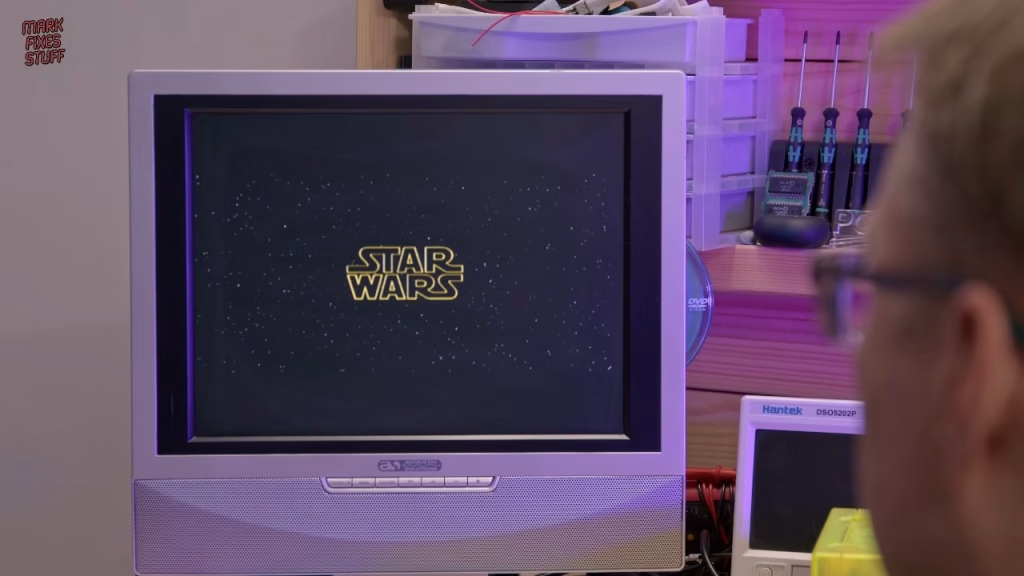
Yes. Every image I copied over worked apart from Final Fantasy Crystal Chronicles, which I later fixed with a different rip. Ikaruga (yes, I know), Luigi’s Mansion, Star Wars Rogue Squadron 2 and WarioWare all ran from the SD card, and the disc drive works too. The date and time won’t stick, so the front panel battery is probably dead. It still needs a proper clean, a better video cable and a controller that isn’t terrible, so there’s likely a follow-up. From a plastic bag to this, I’m pretty happy.
Holy is a sugar-free energy drink I like: use code MFS5 for £5 off your first order (minimum spend £14.99) or MFS for 10% off at weareholy.com.
Related
For another optical drive emulator install, see my PlayStation XStation ODE installation guide. If your ribbon or pad repairs need tidying, there’s how to identify and repair a dry or cracked solder joint, and for another Nintendo rebuild from scrap, rebuilding a Game Boy from broken parts.
Leave a Reply