
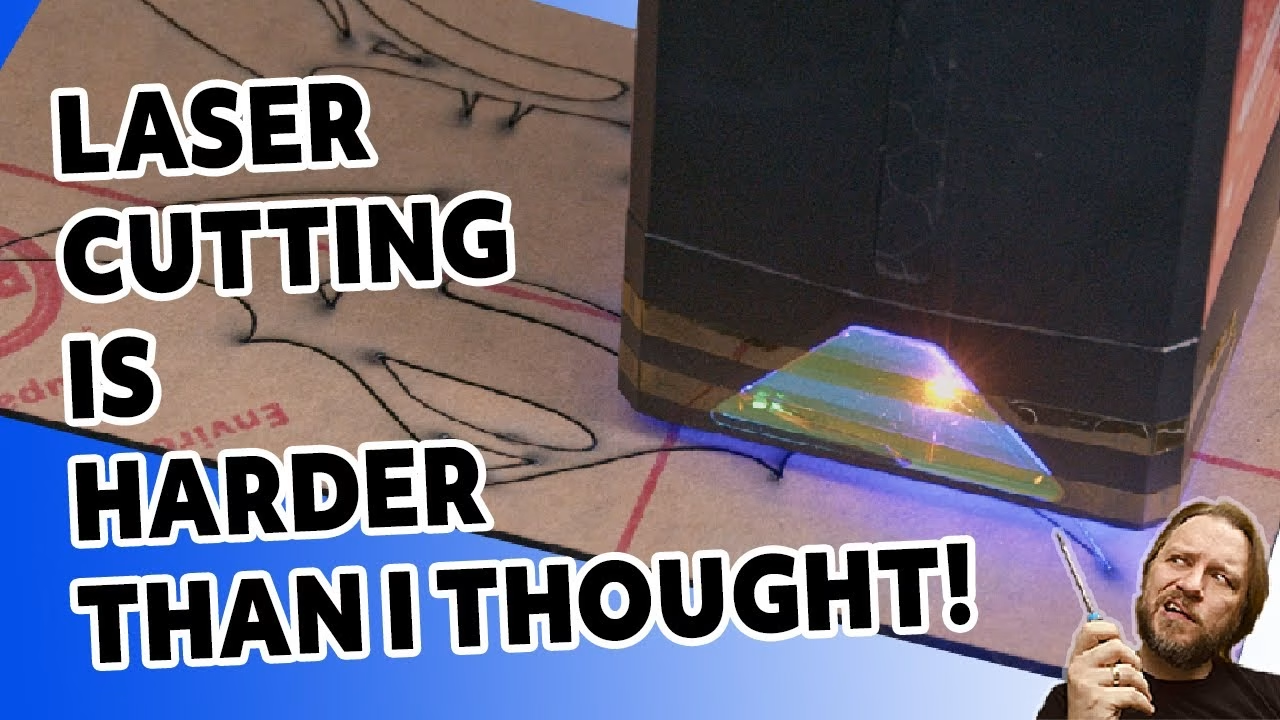
I knew absolutely nothing about laser cutters when the AlgoLaser Delta arrived: not how to set one up, not what software they use, nothing. So this isn’t a tutorial. It’s an honest first experience of building a 20W to 22W class open frame laser (sources vary on the rating), dealing with a part that broke, and learning by burning, cutting and messing up. Thanks to Sarah at AlgoLaser for sending the machine. The channel is supported by PCBWay.
What’s in the box
It’s very well packed. Alongside certificates of conformity for the laser module and the safety glasses (bright 1990s orange), you get quick start guides for the engraver and the air assist pump, a USB C to A cable, the air hose, a mains cable for the big 24V power brick, and a materials pack: plywood, a very thick slab of acrylic (apparently it cuts in one pass, but not today), a thinner acrylic sheet, a black metal card and a very reflective piece of metal that slightly worried me. The manual is genuinely well laid out. I’d have saved time by reading it first.
Assembling the AlgoLaser Delta
The first surprise was the size: I’d seen the dimensions, but it’s huge in person. The air assist nozzle screws into the laser module, and the module slides onto the X axis on rails, where you can raise, lower and lock it.
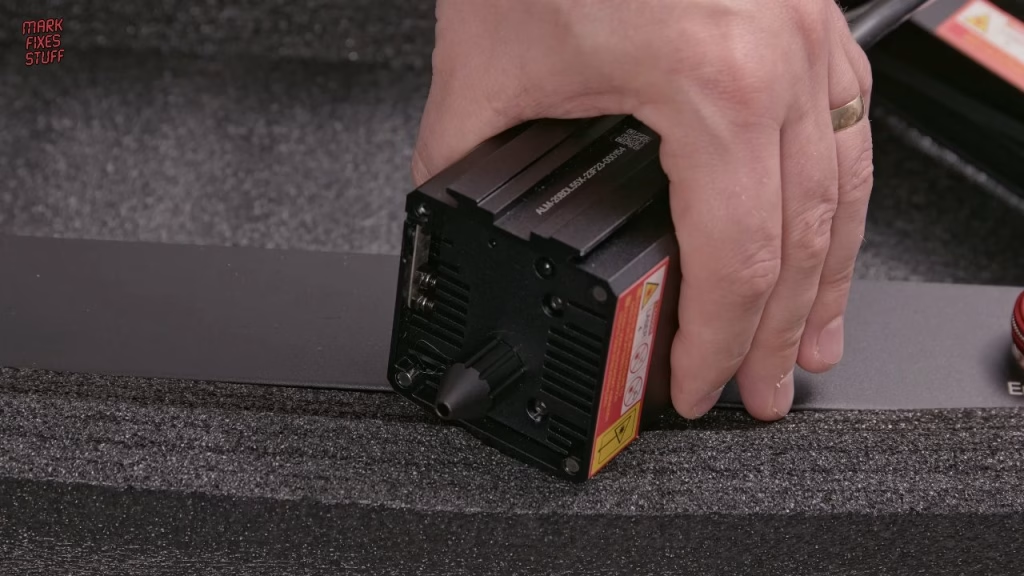
- If the head is locked too low you can’t line up the X axis mounting holes. I took the head off entirely so the axis wasn’t pulled forward by its weight.
- Each end takes two M4 x 10 machine screws, pre-coated with threadlock. I start all of them finger tight before tightening any, which makes later holes much easier to line up.
- Machine screws should go in easily; if you meet resistance, you’ve probably got the wrong screw or the wrong hole.
- The X axis belt tensioner bolt needs a bit of pressure on the tensioner to find the thread. There are two more tensioners on the back for the other axis, which I set roughly equal.
- The feet go on last, oddly, followed by the Wi-Fi aerial. There’s also a key switch, which is useful in a shared space.
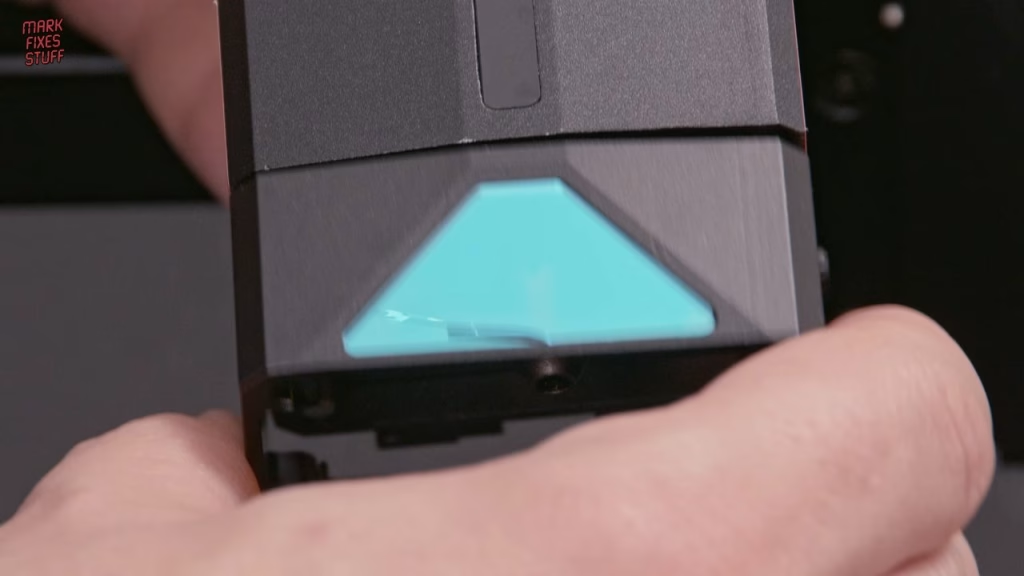
A cracked laser shield
The magnetic laser shield had a crack in its glass when it came out of the box, which I assumed was shipping damage. Then the small shock of it snapping onto the magnets cracked it all the way through, and the glass (I assume some kind of filter) dropped under the machine. Terrible luck. I taped it back together with high temperature polyimide tape so I could carry on, and planned to contact AlgoLaser about it. I know the health and safety crowd will be going bananas.
Air assist, power and first boot
The air pump sits on anti-vibration feet. The plain end of the hose pushes onto the pump and the other end goes into a push fit connector under the left side of the machine (release it by pressing the black collar). The pump’s power cable has a small DIN style plug and an inline control marked 10 to 100, presumably percentage of air, and it takes power from the main unit. On first boot the light flashed orange: the emergency stop was active. Twist to release and it goes green.
Wi-Fi defeated me. My password contains an ampersand and the on-screen keyboard doesn’t have one, and the desktop tool I tried didn’t support this model, so I used USB. I also bought a honeycomb bed separately, put cardboard under it to protect my table, vented fumes out of the window with a 4 inch twin speed fan and a hose, and wore a respirator plus the supplied goggles.
Focus and LightBurn
Focusing is easy: slide a lever down to form a small depth gauge, lower the head until it touches the material, flick the lever up to lock the head, then press the black button to retract the gauge. The software is the hard part. I used LightBurn for Windows (paid, with a 30 day trial). It detected the laser and its working area automatically; I just had to name it and set the origin to front left.
First burns and mistakes
- A warped plywood sheet, held flat on the magnetic bed with strong magnets, got the built in test chart. None of the lettering came out and only a few squares cut through.
- A portrait of Clement Attlee came out far too light, because I’d set 20% as the maximum power, not the burn power, so everything was scaled down.
- On thin 100mm wood squares at a 60% maximum, the same image came out far too dark. LightBurn has image processing options I need to explore.
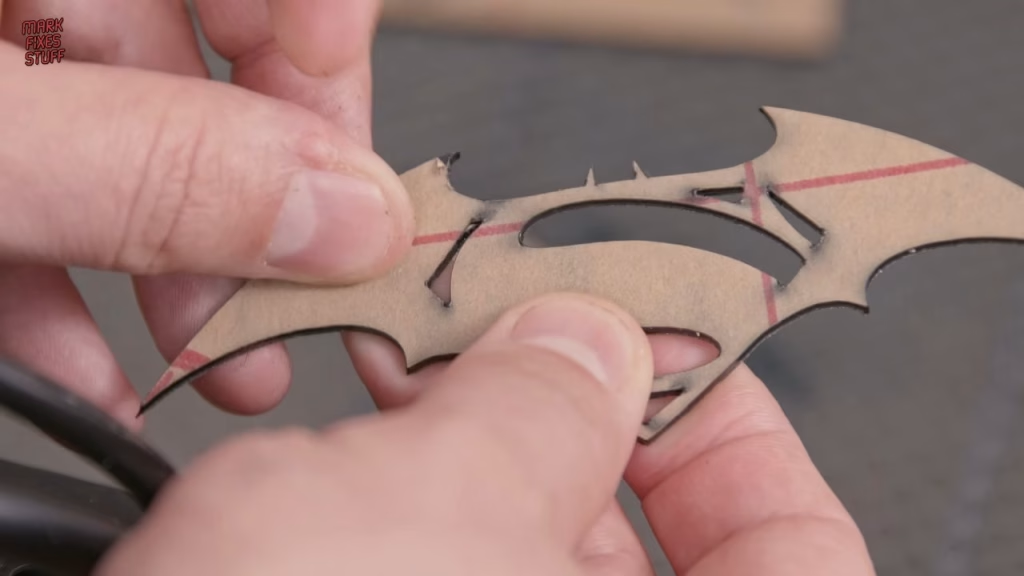
Next, a Batarang from TheHackSmith’s laser cut Batarang file in acrylic. My first attempt barely marked the backing paper. At 100% it went through, but the sheet seemed to fuse back together and the part snapped as I removed it; my theory is that too much power melts and re-welds the acrylic. At 60% with two passes there was far less smoke and the Batarang came out, a little rough edged from too much power.
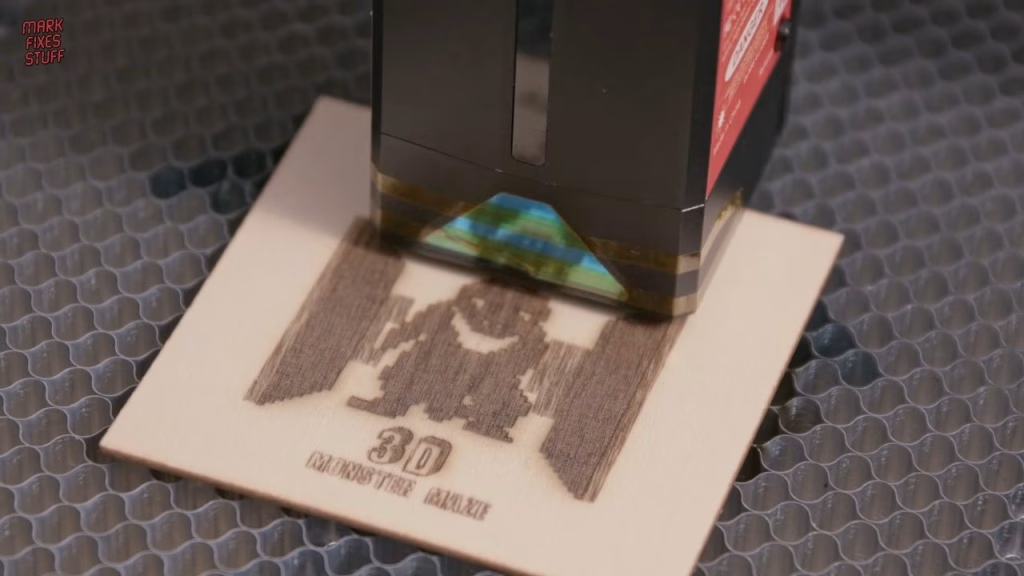
Please check any material is safe to laser before you try it, as some give off toxic fumes, and always work with good ventilation. By 4am I’d moved on to pixel art: a Dizzy engraving, where the extra power gave nice different depths to the greys, and a 3D Monster Maze coaster I designed in Photoshop at 300 DPI, which LightBurn imported at exactly the right size.
My verdict as a complete beginner
Laser burning and engraving isn’t a science, it’s an art you pick up over time. I’m a little torn: I’m not sure about the safety of an open frame laser, especially after the shield broke, but I had a huge amount of fun with it.
Related
More workshop kit: my top 13 tools for fixing stuff and 3D printing retro parts with the Anycubic Kobra X. For printable artwork, see my Atari 2600 label template.
Leave a Reply