
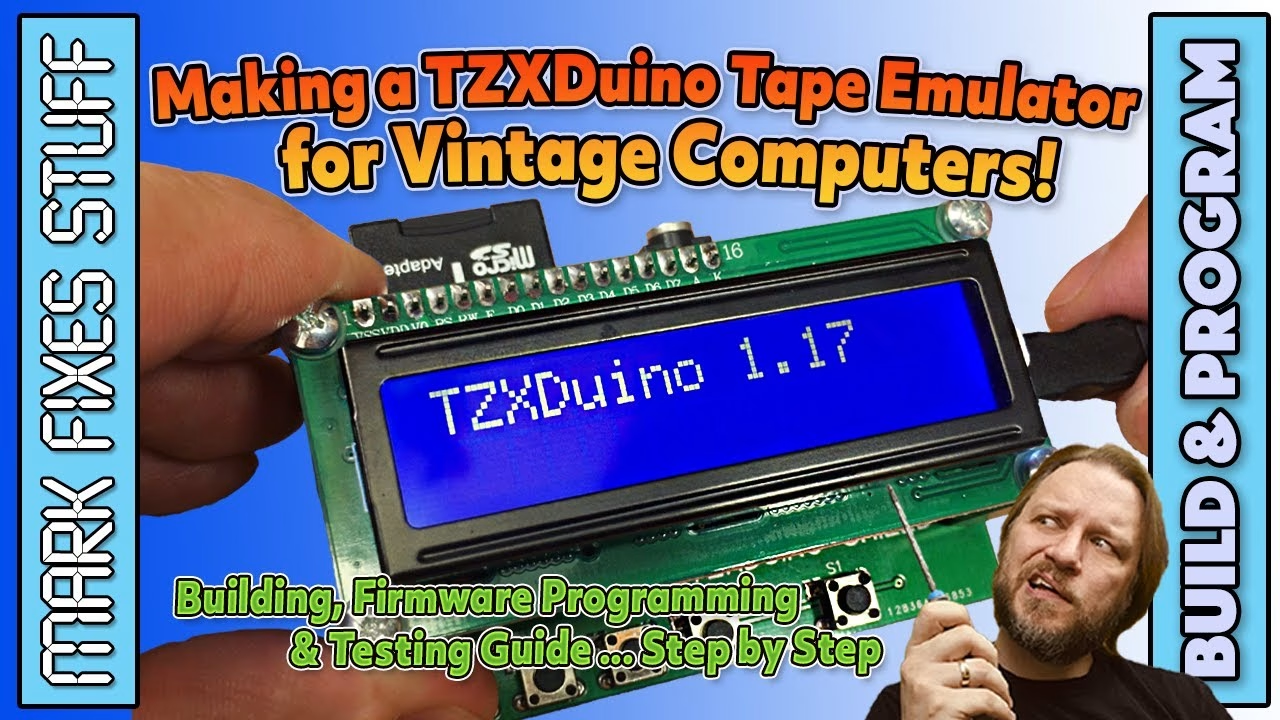
The TZXDuino is an Arduino-based player that turns digital tape files into audio for classic computers like the ZX Spectrum and MSX. I bought this kit from Zaxon about seven years ago; it’s the very first version, with a small error on the board. In this post I build it, set up the Arduino IDE with the right libraries, program the firmware (the same process you’d use to update it later) and test it on a Spectrum. This video was sponsored by PCBWay, and you can order the newer V2 board from the TZXDuino Shield V2 project page, thanks to Zaxon allowing me to host the files. The V2 board adds a motor control socket and already has the board fix taken care of.
TZXDuino parts list
- TZXDuino shield PCB
- 16×2 LCD character display with an I2C backpack
- Full-sized SD card slot (showing the age of the kit)
- LM386 audio power amplifier and socket
- 3.5mm jack socket
- Five momentary tactile switches
- Arduino Nano clone and two rows of 15 header pins
- R1 to R3: 1.8K; R4 to R6: 3.3K; R7: 10 ohm
- C2: 47nF ceramic; C1: 10µF 16V and C3: 220µF 16V electrolytics
- Four hex standoffs with screws and washers, plus a four-way strip of ribbon cable
Fixing the V1 board error
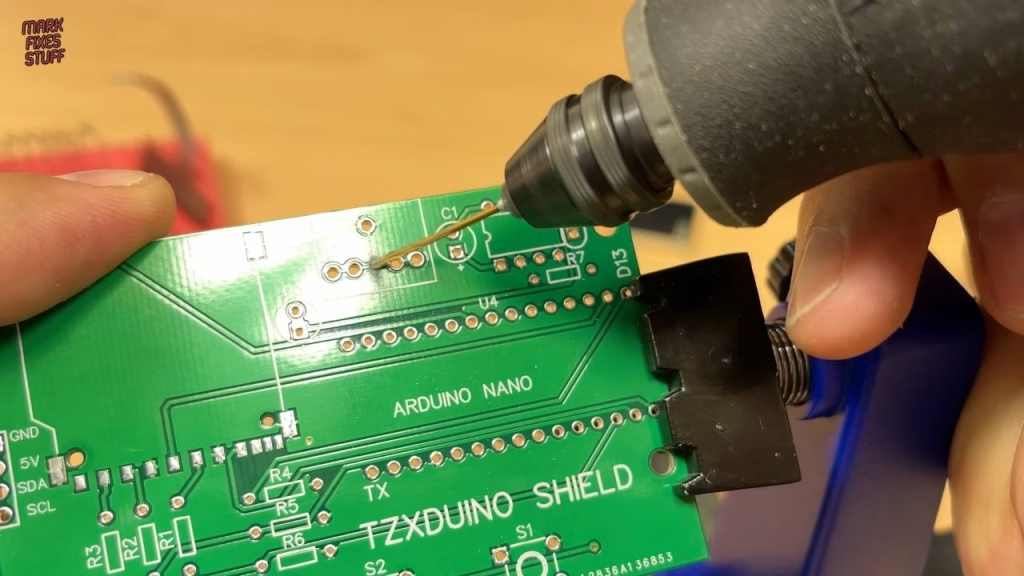
After cleaning the PCB with 99.9% isopropyl alcohol (cleaning prevents soldering difficulties later), it’s time for the fix. On the V1 board there’s a connection that shouldn’t be there. I cut the track with a cutting bit in my Dremel, then checked with a meter for continuity: nothing connected, which is perfect.
Soldering the TZXDuino
The SD card socket goes first, with liquid flux. These can be a pain because the metal shielding pulls heat away from the iron, and cranking the temperature up risks melting the socket’s internals. The shell joints went on a bit blobby but made good connections; the data pins were much easier.
Then the resistors, with my iron at 330°C. My 1.8K parts are banded brown, grey, red, gold and the 3.3K ones orange, orange, red, gold, while R7 (10 ohm) is brown, black, black, gold. Yours may have more bands or different colours, so check with an online calculator if unsure. Wear eye protection when trimming leads, as those little offcuts love nothing more than flying at your eyes.
Next, the socket for the LM386 amplifier, which makes sure the audio output is loud enough for the computer to pick up, and the 3.5mm jack socket, both held with Blu Tack while soldering. A dry fit with a jack plug confirmed a nice tight fit. C2, the 47nF ceramic, has no polarity. C1 and C3 are electrolytics, so the longer positive leg goes in the hole marked plus. The five tactile switches are slightly rectangular, so they can’t go in sideways.
Fitting the Arduino Nano and LCD
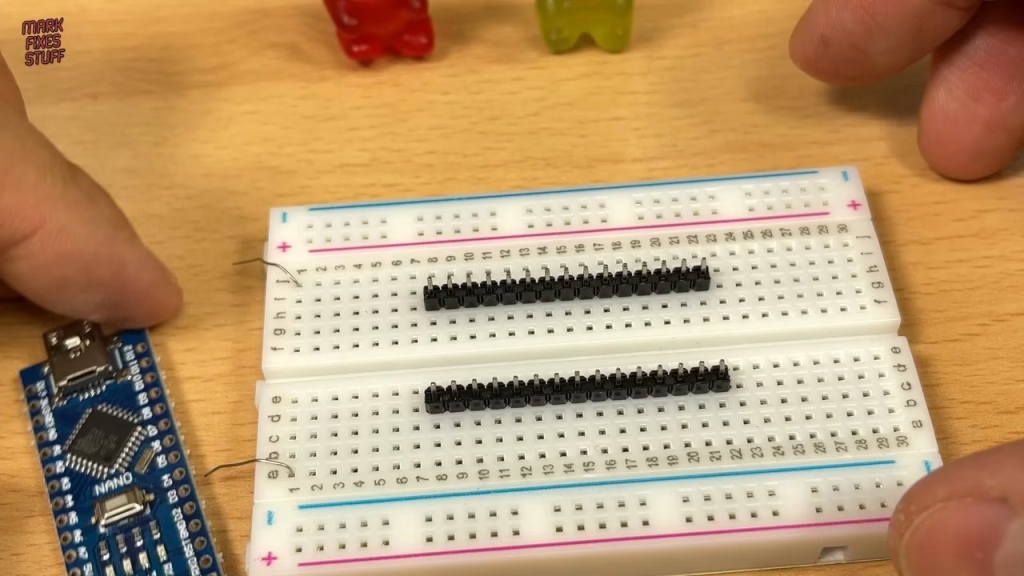
The Nano is soldered to the board on two rows of 15 header pins. To keep them straight, I push the headers into a solderless breadboard, sit the Nano on top and solder the pins to the Nano first. It’s far easier than soldering wobbly pins.
The I2C backpack takes the data the Arduino sends and drives the LCD’s 32 characters. I removed its four-pin header with a desoldering gun to wire it directly, and made a boo-boo: I used nice 22 AWG hookup wire and soldered the backpack to the LCD, only to find the 22 AWG wire was too thick for the TZXDuino PCB. I redid the connections with thinner 30 AWG wire, without needing to desolder the backpack, and made them nice and long. Far too long, as it turned out, so I twisted, tucked and forgot about it. Tinning wire ends before soldering is good practice: it deals with any contamination before it causes trouble.
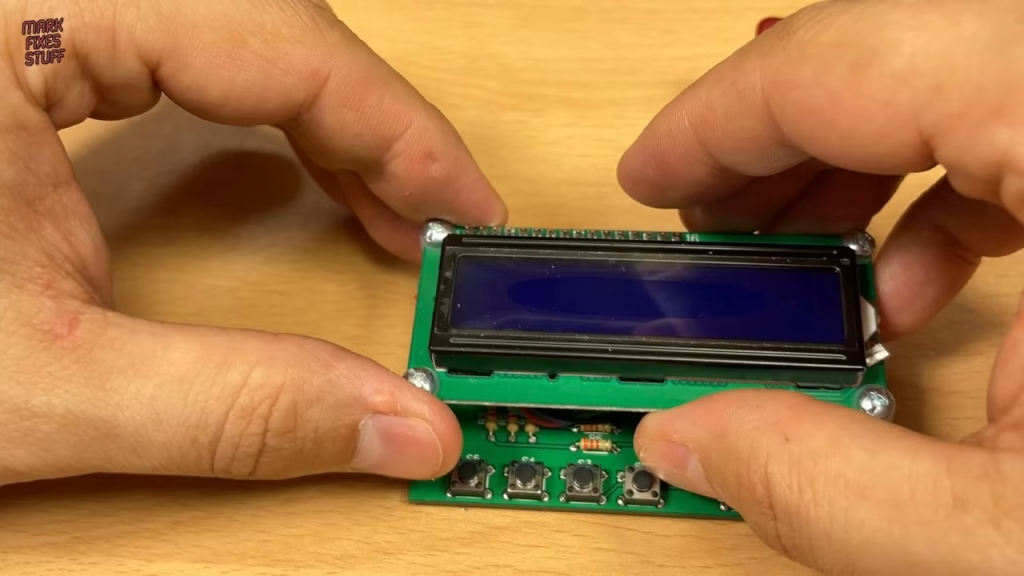
Match the TX marking on the board with the TX pin on the Nano. The big header pins have a lot of thermal capacity and take a while to heat, but I don’t like raising the temperature because it can damage the PCB; I’ll go back and rework a pin if the solder hasn’t flowed properly. The LM386 pushes into its socket, and the LCD wires go like for like: ground and VCC (5V) for power, with data on SDA and the clock on SCL. I2C can address well over 100 devices on those two lines in 7-bit mode, so a bit of extra wire really doesn’t matter. Finally, the standoffs go on the screen (with the nylon washers on the LCD side; I think they’re more for grip than insulation, as the holes are plated) and then screw to the underside of the shield.
How to program or update the TZXDuino firmware
The unit is powered and programmed over USB, and with a blank Nano you just get a blank screen. Here’s the process:
- Download the Arduino IDE from arduino.cc. There’s a Windows 10 app, but I prefer the installer. It’s free, but donations help keep it in development. Accepting the defaults during install is fine.
- Download the latest TZXDuino firmware from the project’s blog (1.17 at the time of the video, a quick patch for a bug introduced in 1.16). Thanks to Duncan and everyone who has worked on it.
- Extract the archive into its own folder named after the archive, then open the sketch with the version number at the end (1.17) via File, Open.
- Under Tools, Manage Libraries, install three libraries: LiquidCrystal I2C (latest), SdFat (the latest version won’t work, so install version 1.1.2) and TimerOne (latest).
- Verify the sketch. A low memory warning appears, but it isn’t an issue for this project.
- Under Tools, Board, choose Arduino Nano. Under Tools, Port, choose the right COM port: you can find it in Device Manager, but it’s usually the last one added (the highest number). Get Board Info confirms the connection.
- Upload. If it takes ages and ends in a red error, your Nano clone probably uses the older bootloader: choose Tools, Processor and select the old bootloader option, then upload again.
With the old bootloader selected, the sketch uploaded very quickly. Unplug and reconnect the power, and the TZXDuino springs to life, asking for an SD card.
Did the TZXDuino work?
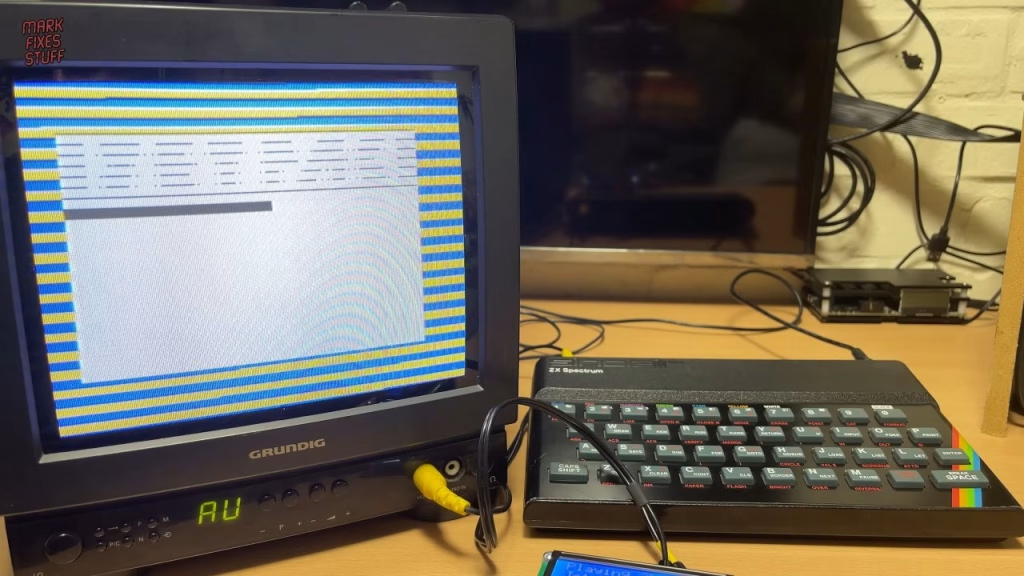
The buttons are up, down, play/pause, stop and menu. My SD card is FAT32 formatted with folders for the ZX Spectrum and ZX81 holding TAP and TZX files. With the output connected to the Spectrum’s EAR socket, loading worked great, with a handy percentage meter. It loads in real time, so I edited the footage down, but those loading screens are something you really miss with an instant-loading DivMMC. The 16×2 screen is bright and clear, so my janky soldering paid off. The first game crept up to 99% and then loaded fine, The Trap Door worked fine, and so did Dreamwalker, an amazing newer title you must try if you haven’t.
Related
More tape and storage builds on the site: the Tapuino virtual C64 Datasette build, loading Spectrum software from an MP3 player with OTLA, the DivMMC Future review and fixing a dead Arduino Nano clone.
Leave a Reply