
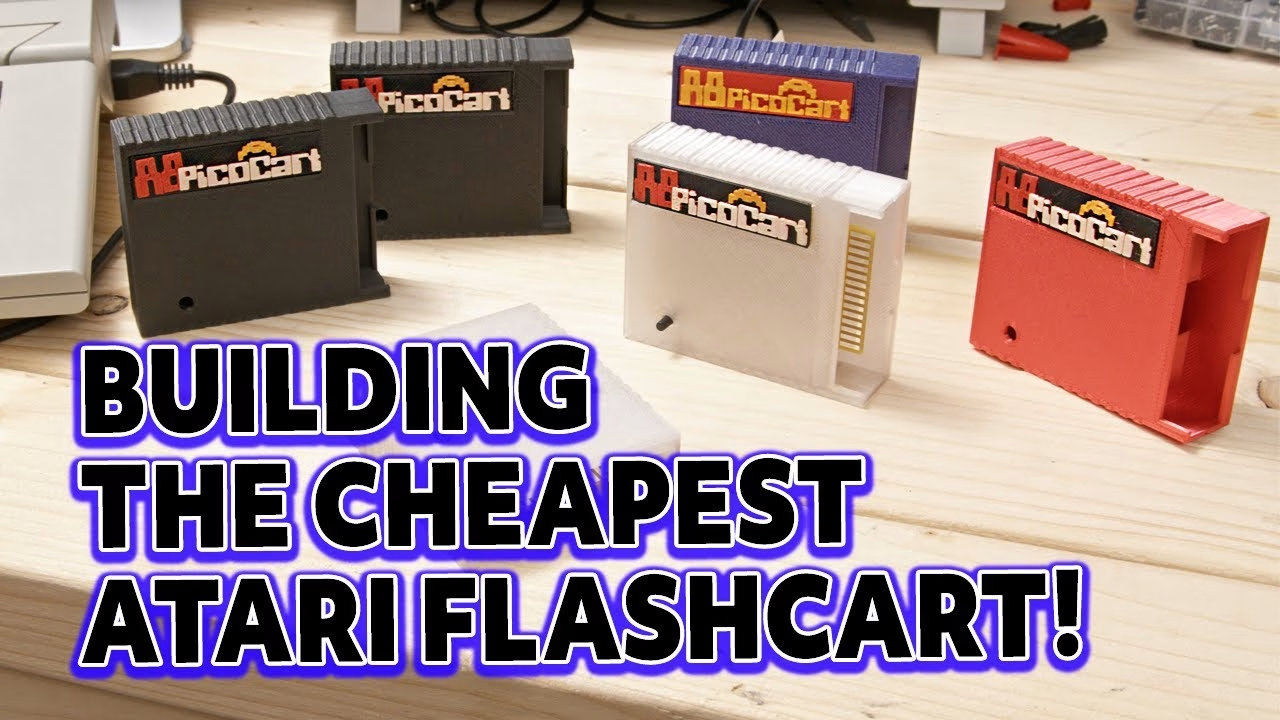
The A8PicoCart might be the cheapest flash multicart ever made for the Atari 8-bit computers (400, 800, XL and XE). Designed by Robin H Edwards (ElectroTrains), it’s an Everdrive-style cartridge built from a simple PCB, a purple Raspberry Pi Pico clone and an optional reset switch, and the board can cost under $10 delivered. In this guide I order the PCB, solder it up, flash the firmware, test it on a real Atari and print a case with a custom four-colour nameplate. This video was supported by PCBWay.
What you need
- The A8PicoCart PCB, from the Gerber files on Robin’s GitHub (which also has the firmware, manual and case STLs).
- A purple Pico clone, often sold as “RP2040 16MB Ultimate”. Not an official green Raspberry Pi Pico.
- Optionally, a tactile push-to-make switch for reset.
Why can’t you use an official Raspberry Pi Pico?
The official green Pico has the same number of pins and fits the PCB, but its pin functions differ, and using it could damage the Pico or your Atari. The purple 16MB clones are actually cheaper and expose more usable GPIO pins, which the cartridge port emulation needs. Robin’s firmware is tailored for the clone with USB-C, 16MB of flash and a single BOOTSEL button. They can arrive with either Winbond or Zbit SPI flash and the firmware supports both, but you might get a mystery flash chip that hasn’t been tested.
Ordering the PCB cheaply
On PCBWay, choose Quick Order PCB, upload the Gerbers and ignore the price until all the options are set. Most can stay at default, but you need an edge connector, and selecting it makes the price rocket to almost $300. That’s because the default edge connector finish is hard gold. Choose a 45° bevel so the cart slides into the slot easily, then switch the surface finish to HASL (lead-free is the same price), which brings it down to $25.40. Choosing 7 to 9 business day shipping to the UK took mine under $10.
Soldering the Pico header pins
One tip before you start: you don’t need the Pico soldered to the board to test the firmware, so it’s worth flashing it first in case the clone is a dud. I wish I’d thought of that sooner.
I held the Pico slightly offset in my PCB holder, used Blu Tack to stop the header row falling out, and soldered at 330°C (my go-to for this kind of work) with a brass wire tip cleaner, which I prefer to a wet sponge because it doesn’t drop the tip temperature. A bit of flux on unknown pins and pads helps. Heat pin and pad together so the solder flows into the gap and forms that conical “volcano” shape. Where I added solder too early or overdid it, a reflow sorted it.
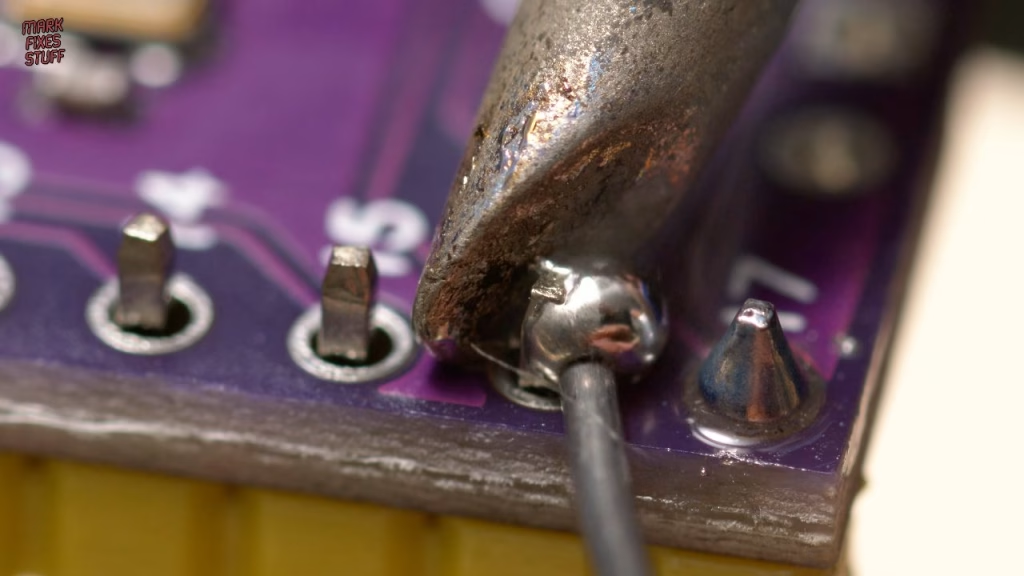
Here’s the key trick: only tack the ends of each header row, then insert everything into the cartridge PCB before soldering the rest. Any slight angle on fully soldered pins makes them a real struggle to get into the board. Kapton tape held the second row in better than Blu Tack. Match pin 18 on the PCB to pin 18 on the Pico, as the board can be confusing. The four-pin header that comes with the Pico isn’t needed.
Fitting the reset switch
Counter-intuitively, the reset switch goes on the opposite side of the board from the Pico. I meant to use a 9mm shaft so it would poke through the case, but grabbed an 8mm one, which was fine. These switches only fit one way and their hooked legs hold them in place. The legs have a fair bit of thermal mass, so they need plenty of heat, but go easy so you don’t melt the switch body.
Flashing the A8PicoCart firmware
Connect the Pico over USB-C and it appears as a removable drive (Windows here; Linux and Mac work similarly). Download the UF2 firmware from Robin’s GitHub (make sure you get the raw file; mine was 192KB) and drag it to the root of that drive. The Pico reboots and reappears as a drive called A8PicoCart, with a welcome message explaining that you drop your ROM, CAR and XEX files into the root. After copying a few games I still had over 13.5MB free, which is a huge amount for old-school games.
Did it work?
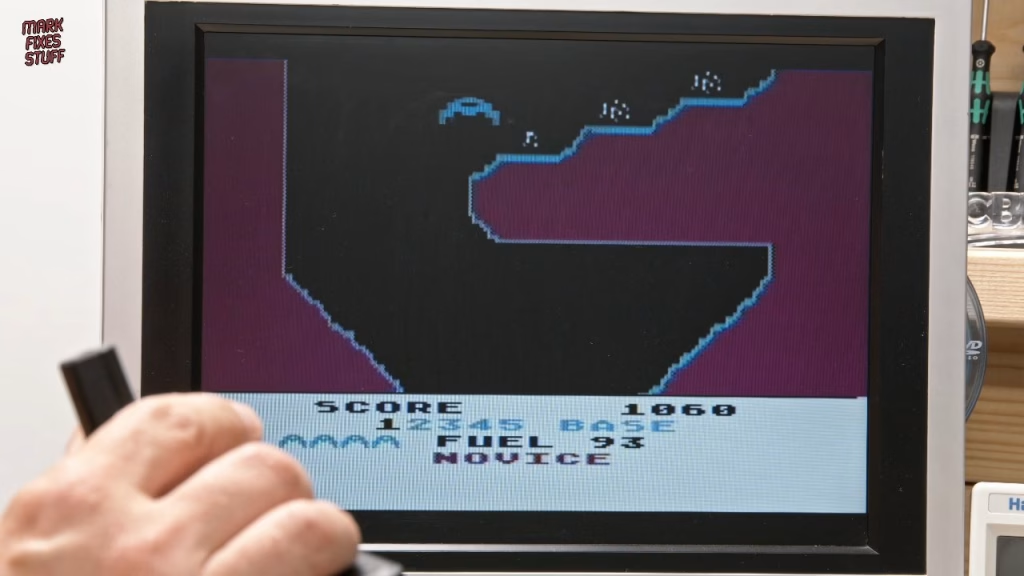
Yes. I tested it on the Atari that had lost its colour, which I fixed in an earlier video. Note that the cart goes into the rear port flipped over compared with what you’d expect. It booted first time, and I went straight to Caverns of Mars, the Greg Christensen vertical shooter from 1981 that my cousin had on his Atari 400. I also played some Into the Eagle’s Nest, far more colourful than the Spectrum version I remember, and the other games I tried worked too. The reset switch didn’t reset the Atari, but I suspect the reset capacitor in my machine is drying out, not the cart.
3D printing the case and a four-colour nameplate
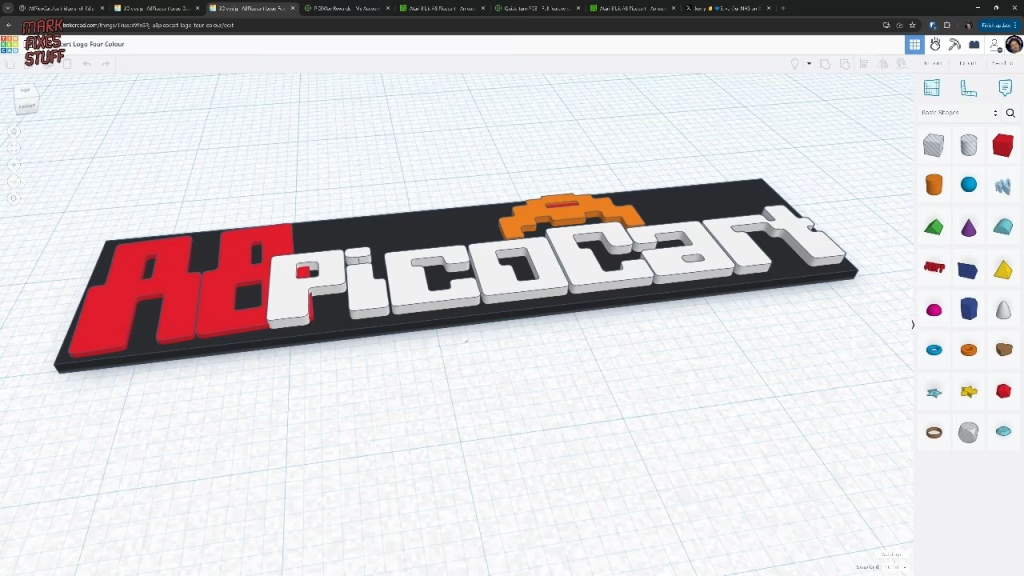
Robin’s case design leaves room to plug in USB-C with the shell closed, so you can add and remove games whenever you like, and there’s a recess for a nameplate. I liked the supplied one, but designed my own using an Atari 8-bit font. Robin suggests inserting a pause in the G-code to change filament colour, so I took it further: a 0.8mm black base and 1.2mm red elements, with pauses at each layer change for black, red, white and yellow. It’s finicky and a bit stringy (nothing a scalpel won’t tidy), but a nice result without a multi-colour printer.
Two M3 screws hold the case together. They cut their own threads the first time, so take it steady; heating screws to drive them in can leave them wonky. I chose translucent filament so the cart’s LED might glow through. The A8PicoCart is free and open, so if you build one, consider tossing a coin or two in Robin’s direction.
Related
More Pico-powered multicarts: building the A10400 Pico multicart for the Atari 2600 and 7800 and a Pi Pico multicart for the Intellivision. For the Commodore equivalent, see my Kung Fu Flash review.
Leave a Reply