
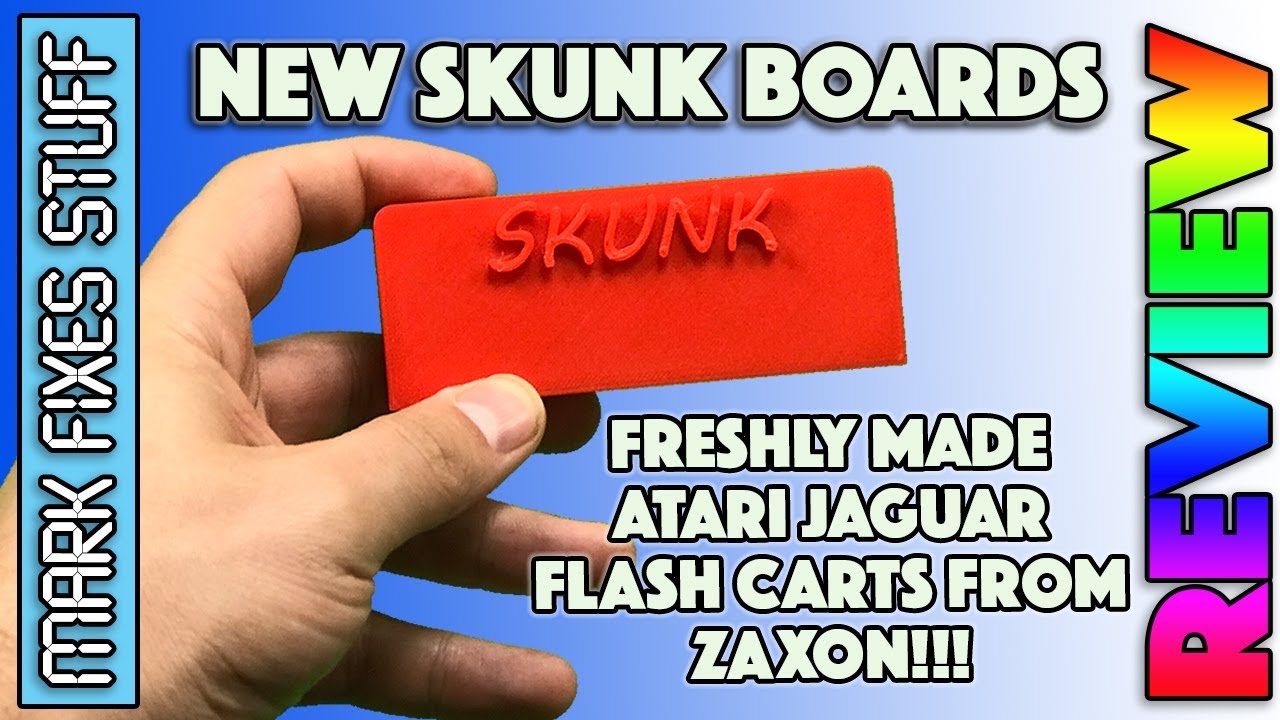
If you want to play Atari Jaguar commercial ROMs, homebrew or Atari ST conversions on real Jaguar hardware, the Skunkboard is the flash cart to look at, and for a long time it was hard to find. In 2018 Zaxon revived the latest version 3 board from the project released as public domain at harmlesslion.com. I’ve spent some time with one: here’s how it feels in the machine, how to write ROMs to it from a Windows PC (including the weird slow write mode), how to boot each bank, and my verdict.
What is the Skunkboard v3?
The Skunkboard v3 has flash memory for save games and two banks for ROMs, so you can hold two 4MB images or one 6MB image. It runs homebrew and commercial ROMs and it’s fairly easy to use. I like my Jaguar very much: plenty of people say it wasn’t the best console, but I really enjoy some of its games. That said, there’s only so much Zoop one man can take.
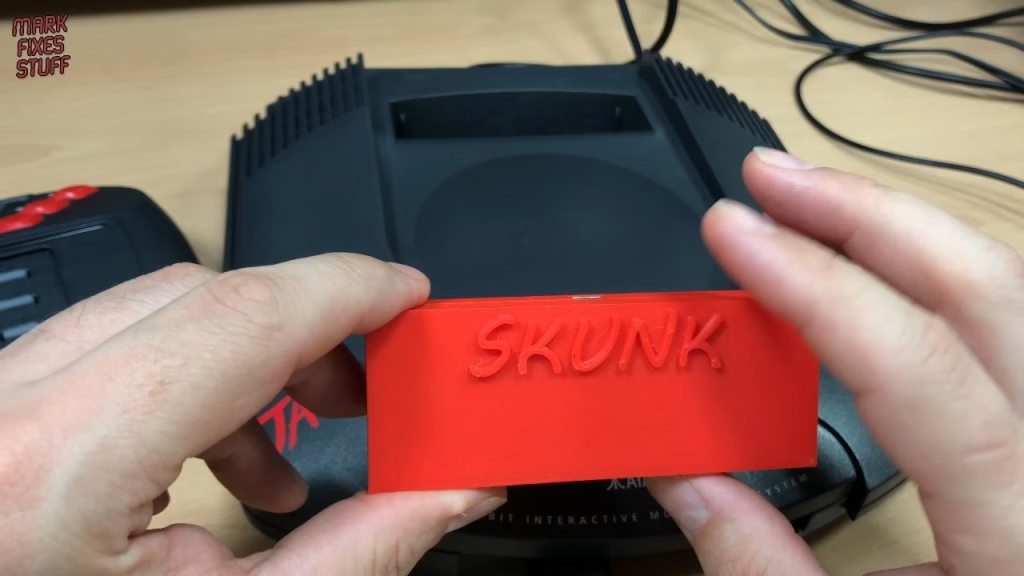
Fit and finish
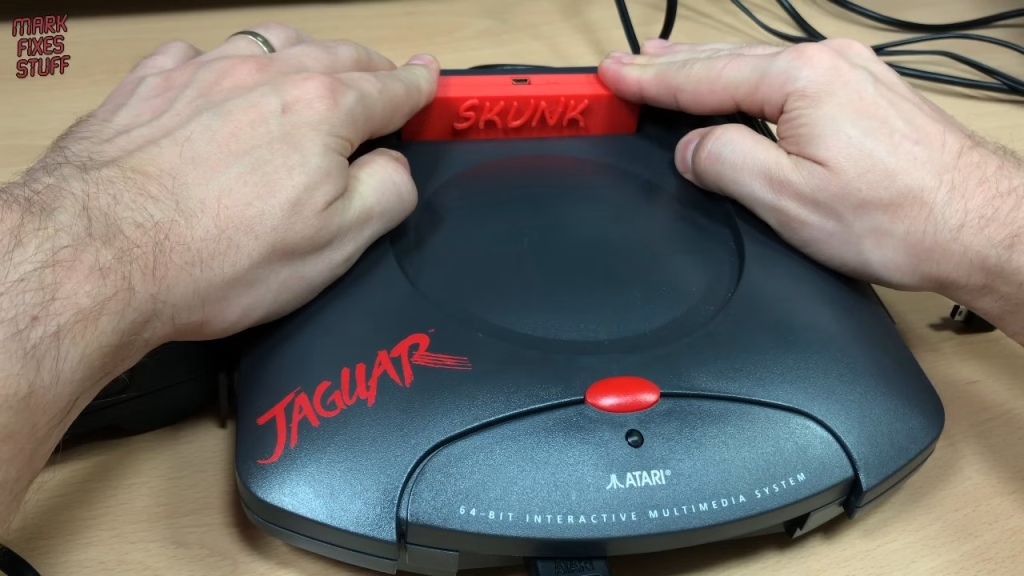
The first thing you’ll notice is the colour. I thought it was a bit gaudy when it came out of the box, but it matches the Jaguar logo and power button reasonably well and looks good in the machine. The second thing I noticed was that the edge connector isn’t bevelled (I believe later versions are), and I was worried it wouldn’t go in easily. That worry was unfounded: it slides in with very little resistance, and it’s a nice firm fit, about the same to insert and remove as a normal Jaguar cartridge.
Drivers, software and manual
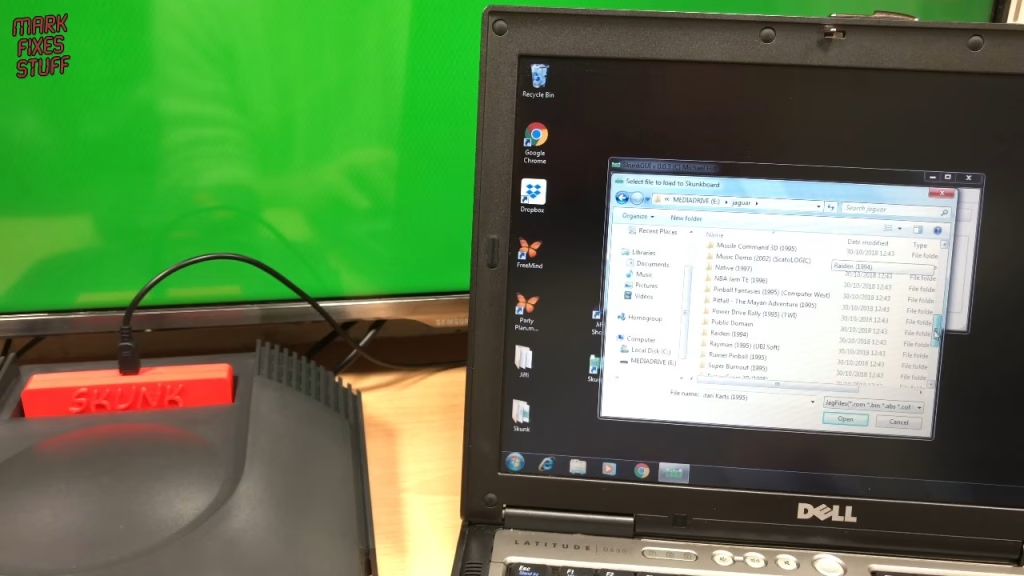
There’s a micro USB socket on top. You plug the cart into the Jaguar, connect it to your computer, and install a very simple driver on Windows (Linux is supported too, but I’m not using it). I used an old Windows 7 32-bit laptop that I keep for EPROM programming and older jobs, but it also works on my Windows 10 64-bit machine, so I don’t think compatibility is a problem.
The manual is really good and holds your hand through installing the drivers and using the software. It’s not Zaxon’s manual: it’s from the harmlesslion.com website and I believe it was written by Mike Brent. Thank you Mike, it’s an absolutely amazing resource.
How do you write a ROM to the Skunkboard?
Power on the Jaguar with the Skunkboard fitted and you get a plain green screen: that means it’s ready to talk to the computer. The original tool was a command line program called JCP, but there are easier options now. The first you’ll come across is SkunkGUI: select a file and click go.
The “is flash” option is interesting. The Jaguar has 2MB of RAM inside, so for smaller images you can write directly to RAM instead of the cart, which saves write cycles on the flash (probably not something to worry about too much). If the file is bigger than 2MB the box is ticked automatically. I tried Pinball Fantasies, which I’d never loaded before.
Why is my Skunkboard writing so slowly?
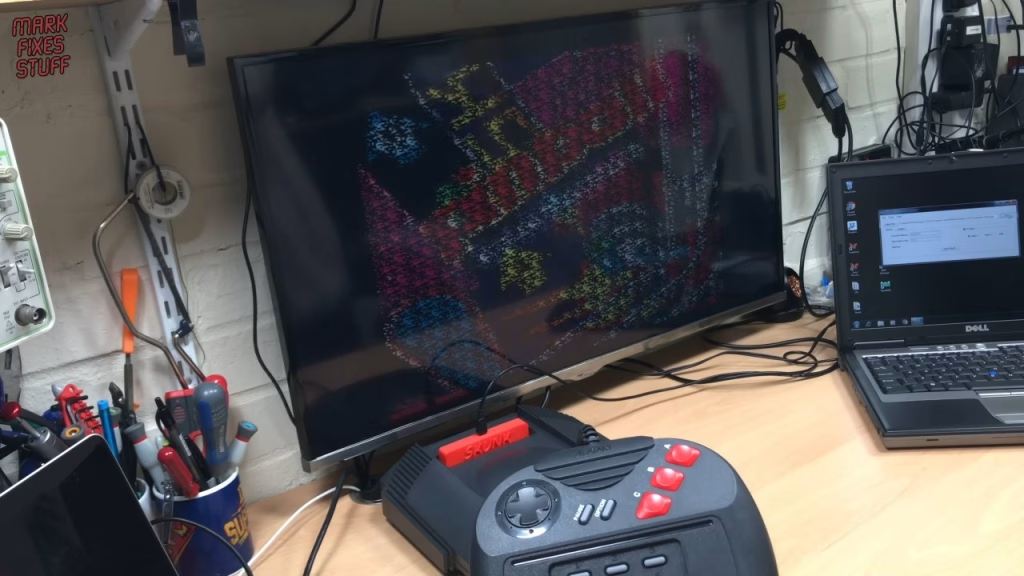
First the Jaguar erases the flash, which takes a fairly consistent 20 seconds or so. Then you may see a black screen with the occasional stripe of white flicking around. You’d be forgiven for thinking something is going horribly wrong, but this is the cart writing, just very slowly. Even the original creators don’t know why, but on some USB chipsets it drops into a slow mode of something like 7KB per second, so a bank can take seven or eight minutes. I have a machine that writes an image in about two minutes, but I left it running on this one so that anyone who thinks it will never finish (and keeps switching it off) knows that it does work.
Later I tried a powered USB hub (only USB 2) and flashed Raiden: it sent a “darn sight faster” and showed a different screen while writing. Admittedly that was a 2MB ROM. It also worked straight away from my Microsoft Surface Pro. So if you get the slow mode, try a different port, hub or computer.
Loading banks from the Jaguar
Power on, wait for the green screen, then press up on the joypad to boot bank one (Pinball Fantasies, which I’d just flashed) or down for bank two (Rayman, a 4MB ROM that was already on the cart). For a 6MB ROM you press A at the green screen, but that image takes up half of the second bank as well, so it wipes out both.
Flashing with Jiffy
Jiffy is another self-contained flashing program. It isn’t specific to the Skunkboard and supports other ways of getting software onto the Jaguar. It detects the title (I used Zool 2), shows the header and checksum, and lets you choose bank one or two. It warns you that flashing will permanently erase the bank, and the “reset Skunkboard before upload” option is why you hear Windows lose and reconnect the USB device. On my laptop it went into the slow mode again (the screen colour changes at the end of each packet, according to the maker), but Zool 2 loaded fine.
Verdict
I bloody love it.
It’s a lot of fun to be able to play games you perhaps can’t afford to buy as real cartridges (I do have quite a few cartridges too). The only gotcha is the USB write speed on some machines. Totally recommended. You can find it in Zaxon’s store on SellMyRetro.
Related
For more Jaguar work, see repairing a Jaguar with a broken cartridge slot and my Atari Jaguar 60Hz PAL mod tutorial. I’ve also reviewed Zaxon’s DivMMC SD card storage for the ZX Spectrum.