
If your PlayStation Move controller won’t charge or barely holds a charge, the internal lithium-ion battery has almost certainly worn out. The Move launched for the PS3 in 2010 and was adopted for the PS4’s PSVR in 2013, so some of these batteries are now 12 or 13 years old. The good news is that replacing the battery is one of the easiest Sony jobs there is: four screws, one ribbon cable and one plug. Here’s how I did it, including the trick for stopping a smaller replacement cell rattling around. This video was sponsored by PCBWay.
Why won’t my PlayStation Move controller charge?
The Move uses a rechargeable lithium-ion cell, and like every lithium-ion battery it wears out with use and age. As it degrades you get shorter and shorter play time, and eventually the controller won’t take a charge at all. With so many people picking up original PSVR systems second hand, and Move controllers not exactly cheap any more, a new battery is a worthwhile fix. (There’s one other cause worth ruling out first, which I’ll come to at the end: the charging cable.)
Replacement battery and tools
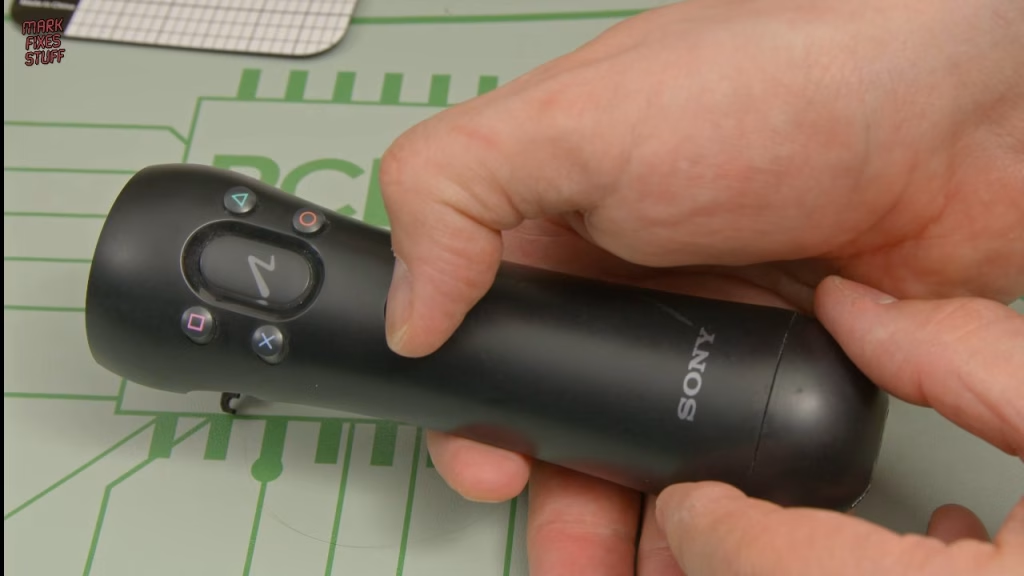
The controller I’m fixing is one of the original models, a CECH-ZCM1E, which I picked up for eight pounds before PSVR was released. The replacement battery should fit all models. I bought a pair of replacement batteries from Amazon; they arrive individually boxed and wrapped in bubble wrap. I can’t vouch for the brand, but they have good reviews and output the required 3.7V. They may come with a fairly awful toolkit with a rubbish screwdriver and a spudger you don’t need. Don’t worry if yours doesn’t: all you really need is a 2mm Phillips screwdriver (size 00), plus something fine for the battery plug.
I used the Kaiweets ES20, a pencil-style electric screwdriver with forward and reverse and two torque settings, switched by long-pressing its single button. I’m normally shy about using electric tools on retro plastic, but the low torque setting makes it practical. What impressed me most is the range of exotic bits: tri-wing for Nintendo, pentalobe for Macs and the elusive 3.8mm and 4.5mm gamebit for Sega and Nintendo cartridges and consoles. It also includes the angled tweezers I used later. If you want one, the code MFS15 gives 15% off the Kaiweets ES20 screwdriver set.
Opening the Move controller
Remove the four Phillips screws from the back. The screw holes are quite deep, but my bit just about reached. The screws don’t like to drop out on these, so lift them out and keep them safe; I put mine on a small magnetic mat.
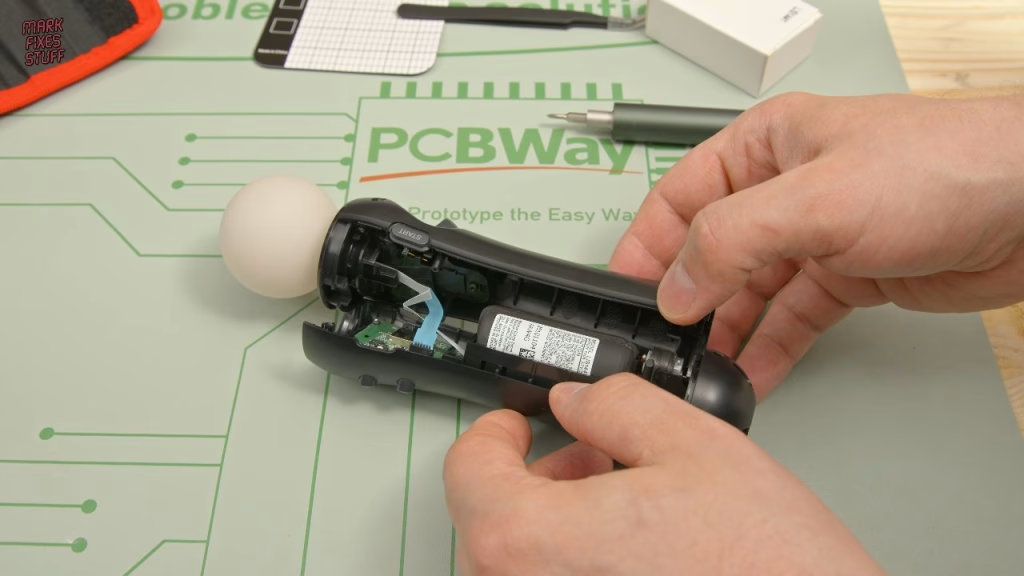
Separate the shell very gently, because there are ribbon cables connected inside. The blue ribbon cable has to come out so the back shell can be removed: grip it between your fingers and pull steadily until it slides out. It should come easily. Then the back shell lifts away from the front shell and the globe assembly.
Disconnecting the old battery
The battery plugs into a slightly recessed socket underneath the vibration motor. With the angled tweezers, gently lever the plug out with a little wiggle. Note that the plug is keyed, which matters when you put the new one in. If the end of the cable drops off, don’t panic: it just slots back in during reassembly.
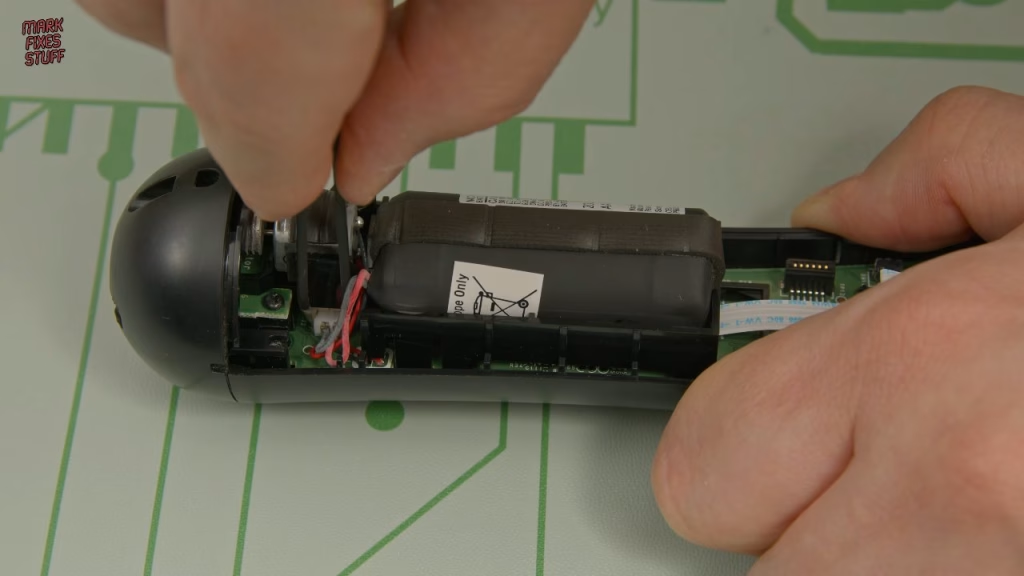
Some replacement batteries are slightly smaller than the original. Sony wrapped a foam rubber strip around the original cell to stop it rattling, so peel that off slowly and in one piece, keeping as much of its stickiness as you can, because you’ll want to reuse it. And please recycle the old battery at a battery recycling point rather than putting it in the bin: lithium cells don’t belong in landfill.
How to stop a smaller replacement battery rattling
With my new battery dropped in, my worst fears were realised: it rattled around like a pea in a whistle. I stuck the rescued foam strip onto the new battery, and it still rattled. The fix that worked was a small piece of sponge (washing-up sponge or anything you can cut with scissors; I used a bit of DIY sponge) placed at one end of the battery bay. Compress the battery against it as you push it in and it’s held firmly. There’s no need to pack the other direction, because the case grips the battery that way once it’s closed.
Connecting and testing the new battery
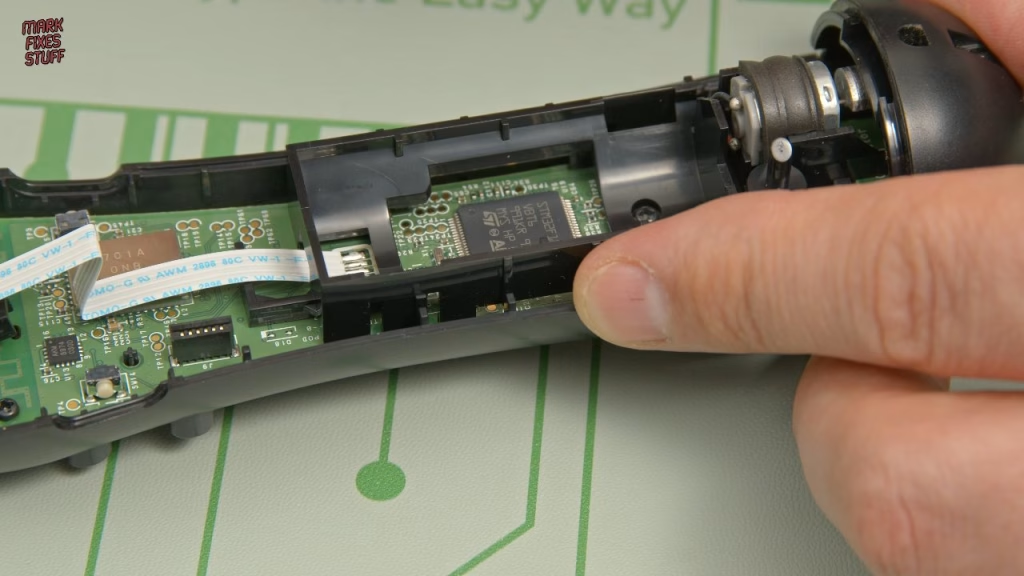
Line the plug up so the key is at the top of the slot, push it into place with the tweezers, then give it a solid push so it clicks home. To test, press the PlayStation button: a flashing LED means the installation is good. Hold the PS button for 10 seconds until the LED goes out to power it off again.
Reassembling the controller
This part is a bit more awkward than taking it apart (isn’t it always?). The LED assembly has a small key at the bottom, and there’s a gap between that and the screw posts either side because the globe assembly has to go in first. Fit the LED assembly with the screw mounts at the top and slide it down into the key slot; it may take a couple of attempts. Keep the new battery’s wires away from the screw hole.
Pick up the back shell, feed the flat folded ribbon cable back into its slot, and if everything is seated the back shell simply pushes on. Check the seam is fully closed along both sides before refitting the four screws. As with any reassembly, turn each screw gently until you feel it drop into the existing thread before tightening, so you don’t cut a new one and weaken the screw posts. Finally, click the side buttons to make sure none of them got trapped.
Did it work? One last charging caveat
Yes: the new battery powered the controller straight away, and it’s ready to go back into service for Beat Saber. One caveat I’ve found across a few Move controllers: not all mini USB cables are created equal, and some won’t charge the controller at all. If a Move still won’t charge after a battery swap (or before you open it up), try a different cable first.
Related
More Sony repairs on the site: my PS4 DualShock 4 repair with a battery replacement and new thumbsticks, removing a stuck disc from a fat PS3 Blu-ray drive, and the step-by-step XStation ODE install.
Leave a Reply