
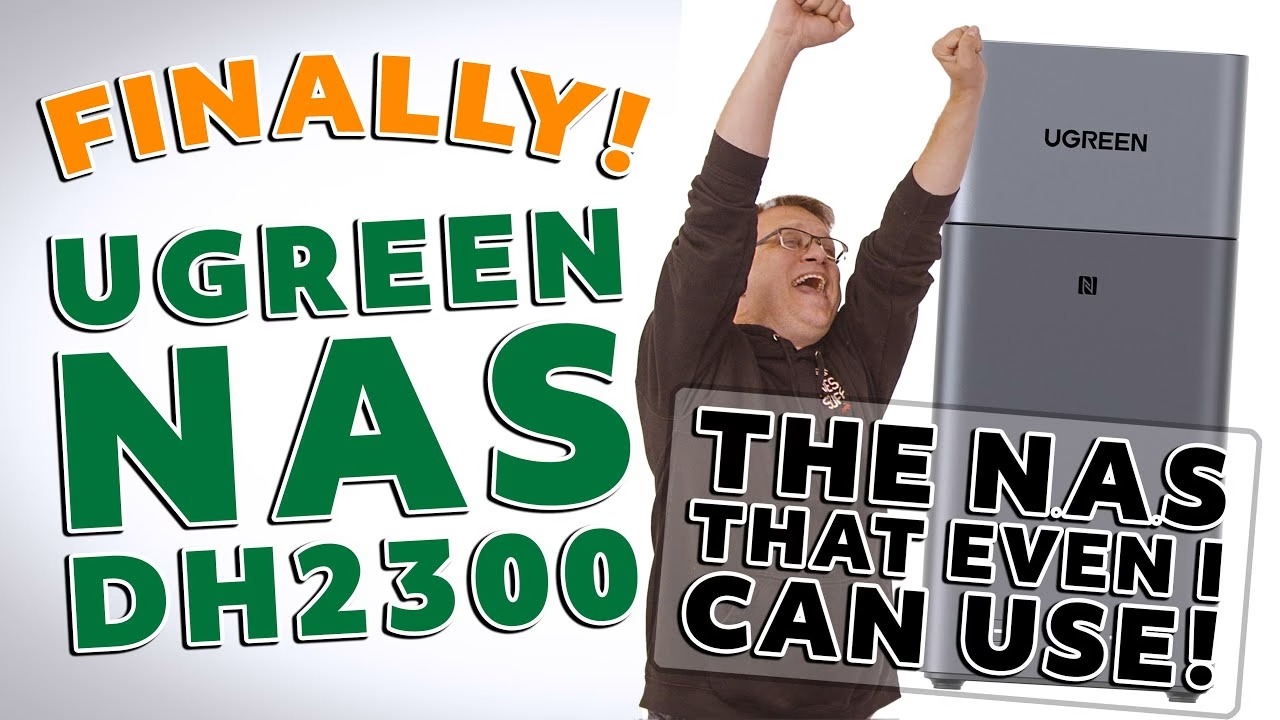
Is a NAS easy enough for a beginner to set up? Between cloud outages, a spell without internet and moving my PC around the new cabin, I realised I’d lost track of a lot of my files. I’d thought about building a proper file server, but there are other projects I’d much rather do. Then UGREEN offered me the DH2300, a 2-bay NAS aimed at first-time users, so I set it up in RAID 1 with two 4TB Seagate IronWolf drives and started backing up my retro ROM images and ISOs. UGREEN sent the NAS and the drives for this video.
Unboxing the UGREEN DH2300
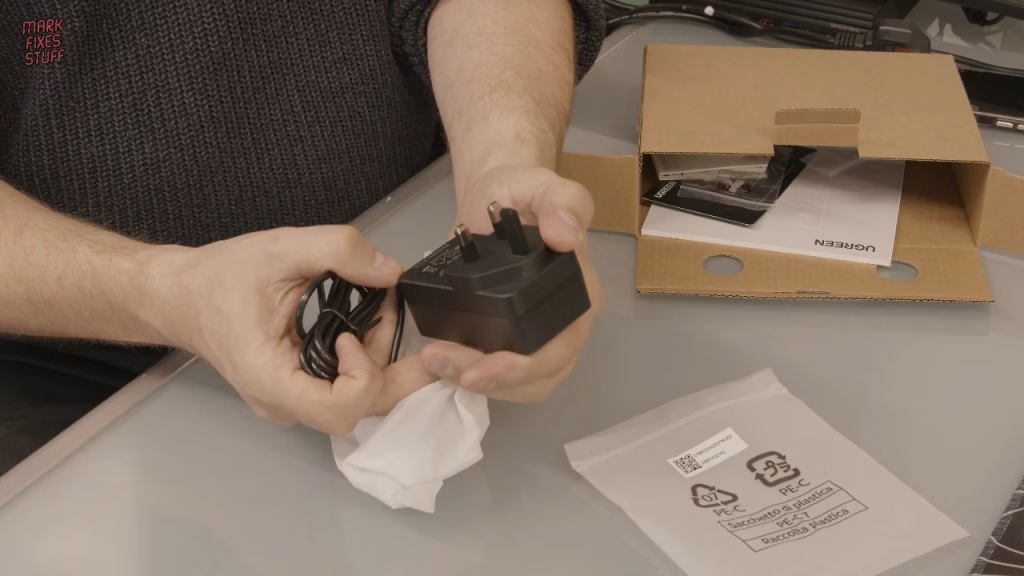
The packaging at least looks eco-friendly, with what I assume is biodegradable foam. In the box: an Ethernet cable, a weighty 12V 4.2A power supply, separate bags of screws for 2.5in and 3.5in drives, a screwdriver, a two-year warranty card, the world’s smallest instruction manual (it’s just certification details), a larger manual with about six pages of instructions in roughly 47 languages, and a WEEE notice. The NAS itself is a smart-looking unit with a magnetic lid, and a warning on top not to carry it by that lid.
RAID modes and installing the drives
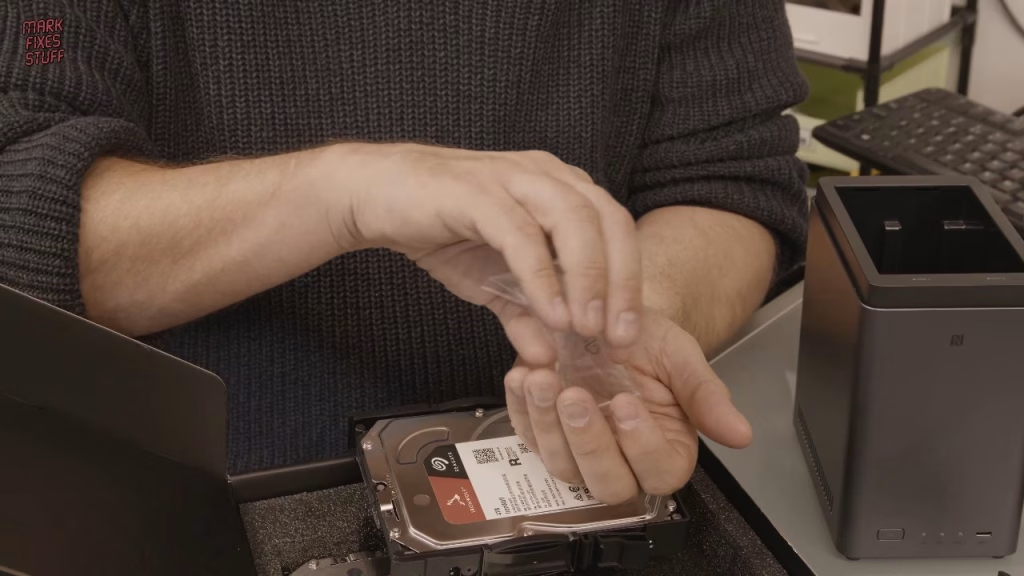
Under the lid are two drive bays with solid plastic caddies. You can fit up to 60TB, and choose RAID 0, RAID 1 and so on. The RAID modes decide how data is spread across the disks: in RAID 1, everything is mirrored on both drives, so if one fails you still have your data, at the cost of half the total capacity. My first hard drive was 20MB, so the idea that 4TB isn’t considered large these days is incredible.
Each 3.5in drive is held in its caddy by screws from the thicker 3.5in bag. As always with screws into threads, I back each one off until it drops into the thread before driving it in. The caddies slide into the bays and go home with a satisfying click. (Thanks to Zach for being cameraman, which is why I’m on screen more than usual.)
Ports and power
- Front: power button, LAN activity light, two disk LEDs and a USB-C 3.2 Gen 1 port.
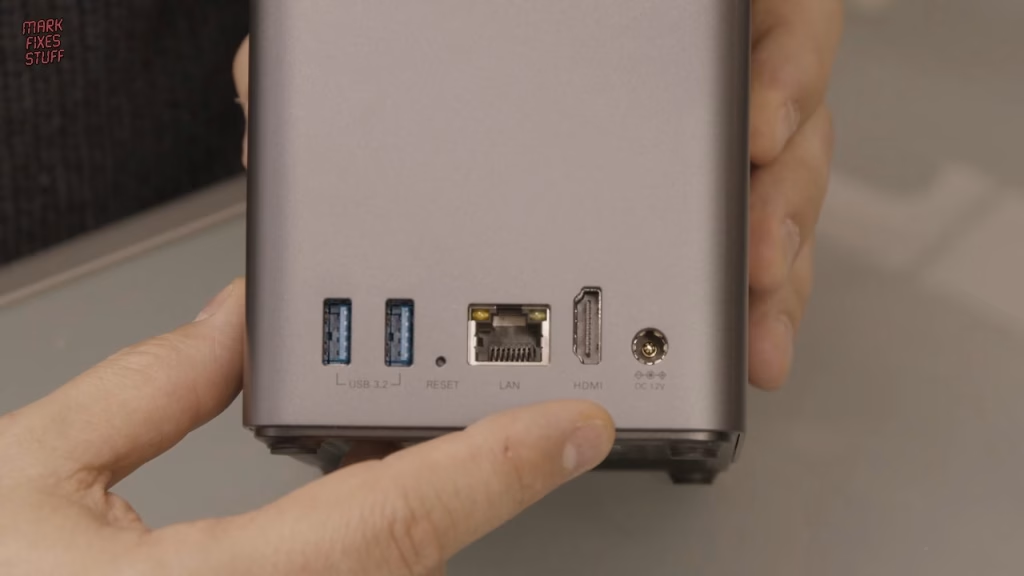
- Rear: 12V DC in, 4K HDMI out, gigabit Ethernet, a recessed reset switch and two USB-A 3.2 Gen 1 ports.
For the price, it’s really well specced. The power supply is made by GVE, who specialise in medical and industrial supplies, so it’s a good quality brand. Inside, the DH2300 is basically a small computer with a Rockchip CPU and 4GB of RAM, and it went into the networking cabinet Simon kindly rescued from e-waste for the cabin.
Setting up UGOS Pro and a RAID 1 storage pool
Because it’s headless, you connect over the network: going to find.ugnas.com searches the LAN, finds the NAS and lets you rename it (I added MFS to the model number). Then you create an account and bind an email address to UGREEN’s gateway, which enables remote access to your files from other devices. While UGOS Pro, the NAS operating system, installs, pop-ups explain remote access, storage pools, shared folders with per-user access, the App Centre and photo features including AI recognition and grouping.
I skipped the tour and went straight to storage. I selected both drives and RAID 1, which warns that half the combined capacity goes to protecting the data. I left the optional hard drive test off, since it reduces data errors but slows things down, and skipped the advanced options. There’s a mildly amusing warning that loud, high-speed drive movement is normal. After formatting and an administrator password prompt, it was a matter of waiting: the estimate dropped over time, but it still finished at about 1am.
Shared folders and copying ROMs over SMB
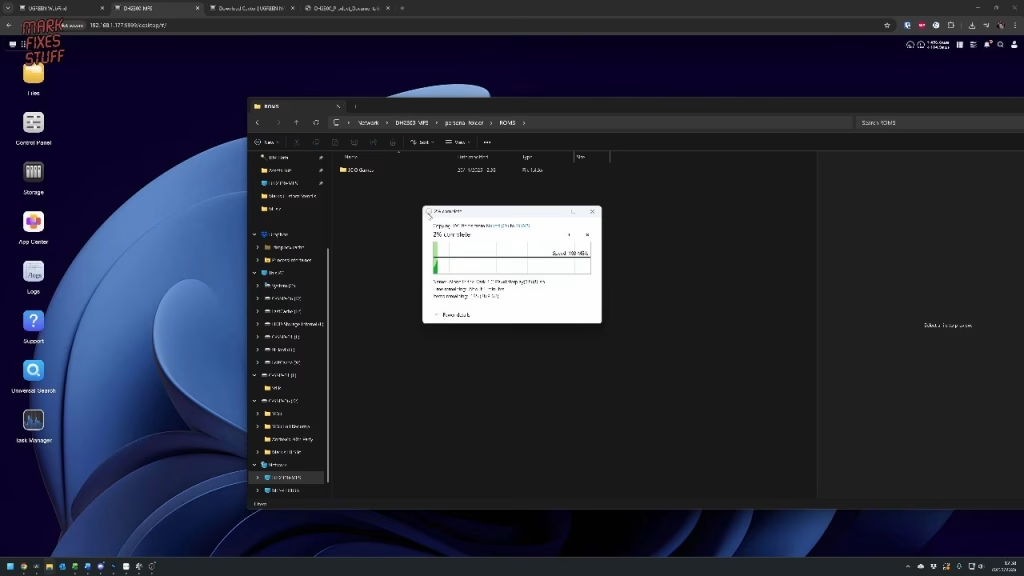
The wizard guided me through creating a shared personal folder on volume 1 with an unlimited allowance. Then in the SMB settings I simply enabled SMB (we’re all on WORKGROUP, aren’t we?). The control panel shows the SMB share path, so I pasted it into File Explorer, entered my username and password, and ticked reconnect automatically. I made a folder called ROMs (you can see where this is going) and copied over big ISO files, which didn’t take long at all over gigabit Ethernet, plus Amiga ROMs and the ROM images I use for repairs. All completely legal ROMs that I own the original media for. It’s a real relief to have them in one central place.
The App Centre and extras
UGREEN’s website has a proper online manual, far better than the paper ones, although the wizard is probably just as helpful. The App Centre shouldn’t be overlooked. Highlights for me include a DLNA service for streaming to smart TVs, a photo app that generates thumbnails and can share photos publicly, a streaming app that turns your own files into a personal streaming service, and a security app using the ClamAV engine to scan everything on the NAS. The download centre has the latest DH2300 firmware and a desktop client, which turns out to open a remote desktop into the NAS, handy if you don’t want to keep using the web interface.
Verdict: is the DH2300 good for a first NAS?
I’m a bit surprised. I thought this would be quite a meh video, but there are a lot of genuinely interesting features, many of which I probably won’t get round to using. My use case is simple: documents, folders and ROMs. When I started I thought I’d need a real file server and that this would be a halfway house, but it isn’t. Virus scanning, remote access, photo sharing and public shares are all there, and if I got my house in order I could probably save money on cloud services. It was a lot less scary to set up than I expected.
You can find the DH2300 on the UGREEN official site or Amazon UK.
Related
I later went further with a bigger UGREEN NAS: building a retro gaming server with the UGREEN DXP4800 GT. And for the rest of the kit on my bench, see my top 13 tools for fixing stuff.
Leave a Reply