

A faulty RAM chip in an 8-bit computer will very often run noticeably hotter than its neighbours, which makes a thermal camera a genuinely useful fault-finding tool on the bench. In this video I try the InfiRay P2 Pro (sold as the Xinfrared P2 Pro), a tiny thermal camera that plugs into a phone, along with its magnetic macro lens, and point it at a Sony HitBit MSX2 that I’d just got working. I wanted to know three things: can it pick out individual components, are its temperature readings trustworthy, and is it worth having in a repair toolbox?
Unboxing the InfiRay P2 Pro and macro lens
The packaging reminds me of an 80s aftershave box. The camera and the macro teleconverter come in two separate boxes, and the teleconverter is the part I was most interested in, because if it works as it should it’ll show the heat signatures of individual components. The camera box is very tight and about as over-boxed and under-filled as anything I’ve opened: pull the blue ribbon to liberate the unit. Inside is the camera, a small storage bag, and instructions covering software installation and device connection (it needs iOS 11 or later; I used an old iPhone 8 Plus on iOS 15 that I sometimes use for macro filming).
The camera itself feels solid, dense and metal, and weighty for its size (the box says nine grams). The macro teleconverter has the same nice metal build but is so light that it’s a bit fiddly to handle, and under its cap is possibly the shiniest lens I’ve ever seen. It attaches magnetically. The pull isn’t the strongest, but it doesn’t fall off, and you can even hold the camera by the teleconverter.
Of course, as soon as I went to use my new toy, my phone battery was flat. Once charged, I installed the app from the App Store, and on first launch it walks you through the different modes, which is genuinely helpful.
How does a thermal camera help with retro repairs?
The camera doesn’t see visible light. It picks up infrared radiation, converts it into an image and displays it as a colour map (black and white by default, with other palettes available). It only sees surface temperature and can’t see through objects. The plan was to take the lid off the MSX2 while it was stone cold, when it should look pretty much uniformly grey, then power it on and watch which parts warm up first. A bad RAM chip often gets significantly hotter than the others, so this is a quick way to point you at a suspect. My hand, by comparison, glowed brightly, and you can even see the veins just beneath the skin.
Be warned that the recording is very low resolution. It’s a diagnostics tool, not a true camera.
Powering on the MSX2 in thermal view
Within a few seconds of switching on, components started to glow brightly, which is impressive, although the overall view isn’t the easiest to read. (The bright patches where my hands had been are actually reflected infrared from my hands.) Switching on the picture-in-picture mode, which overlays the iPhone’s own camera with the thermal image, made it much more helpful for working out what’s what. The ambient readings looked high, but they were true: it gets really hot in the studio with the lights on.
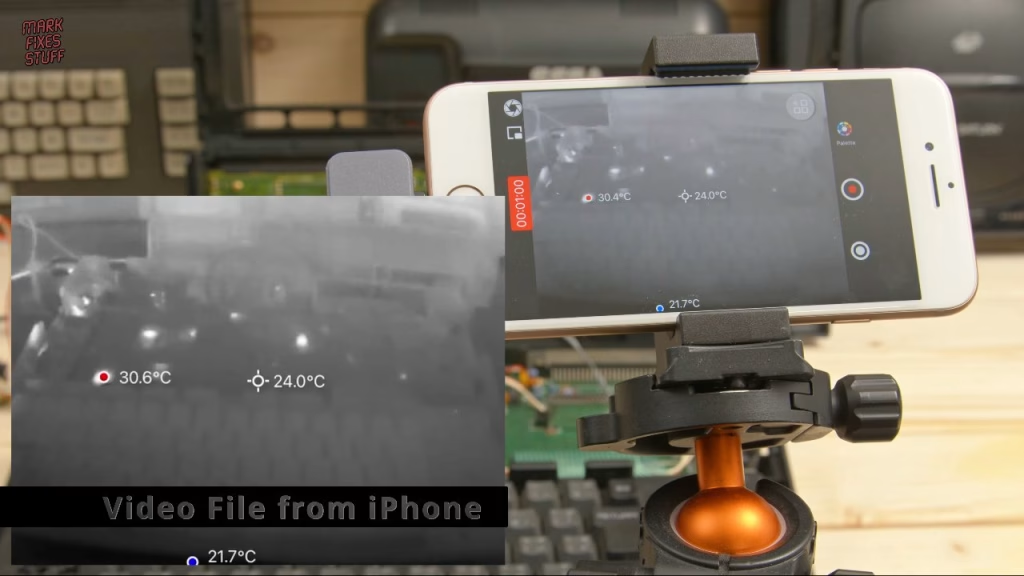
Using the macro lens on individual chips
With the macro teleconverter fitted (and, eventually, its lens cap removed), I could get right in on individual components. Like any macro lens the depth of field is shallow, so you have to move in and out to find the sweet spot, but at the right distance it’s pretty amazing. A hunt around the board picked out the voltage regulators, the video encoder and the CPU.
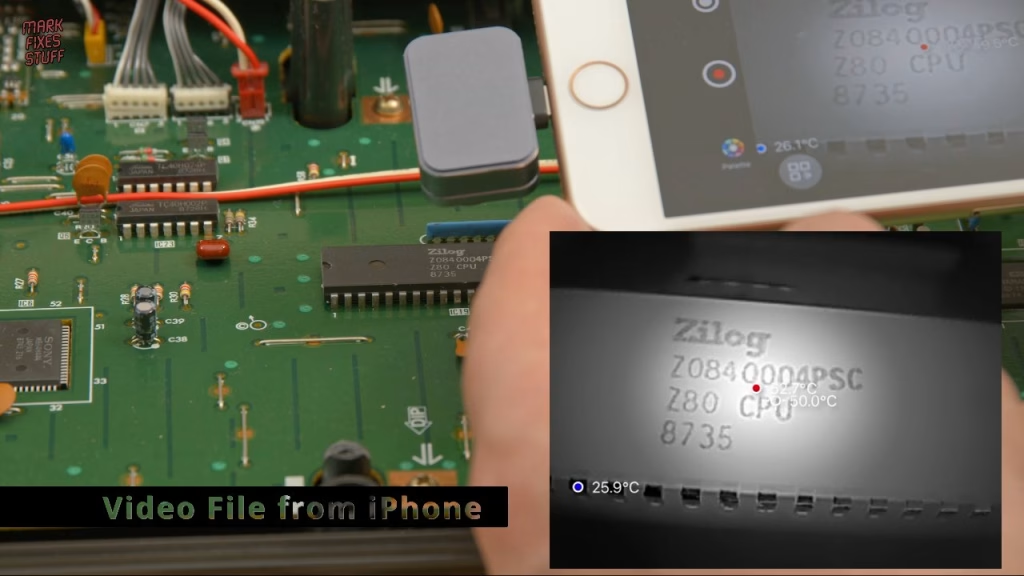
Is the P2 Pro’s temperature reading accurate?
I knew the CPU was warm, but did I trust the number on screen? To check, I taped my multimeter’s temperature probe to the chip with Kapton tape and let it stabilise. It settled around 40 degrees, and the P2 Pro read about the same. Moving the camera around makes the reading wander a bit, but the two sources were pretty closely matched. (Syncing phone footage with my Blackmagic camera was tricky, so any timing mismatch in the edit is my fault, not the camera’s.)
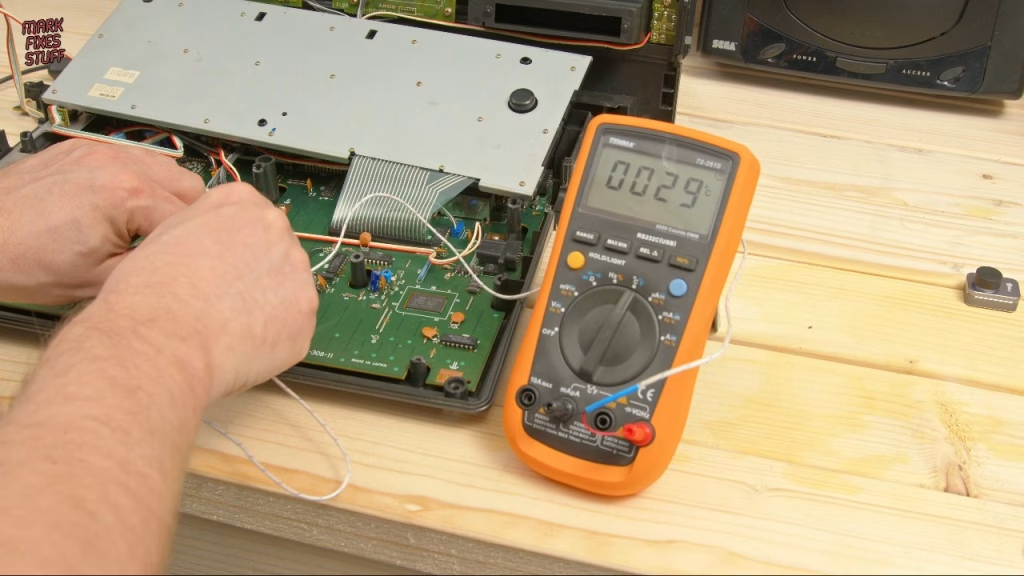
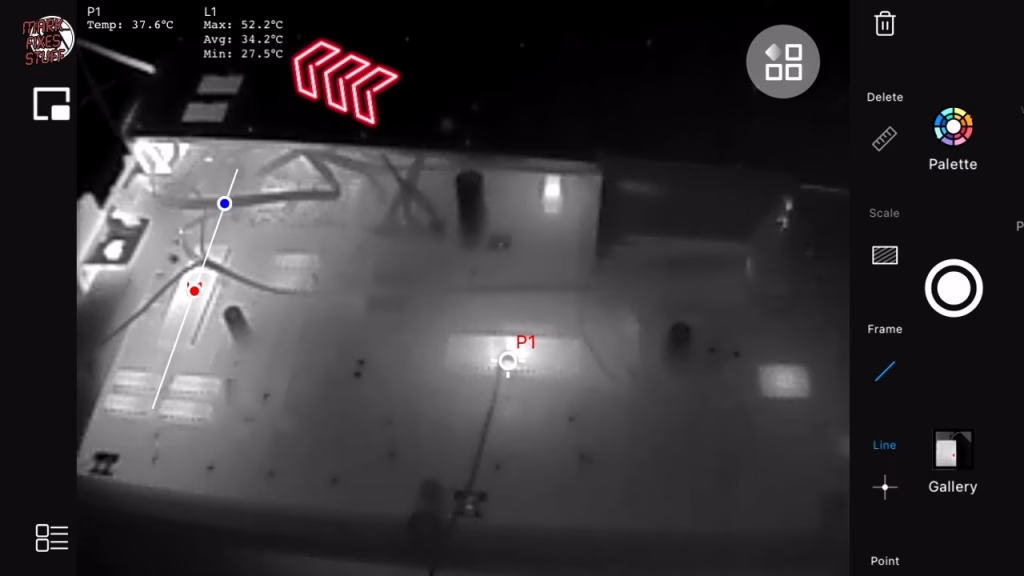
Measurement tools and colour palettes
Professional mode is where the useful features live:
- Point drops a marker on the image and shows that spot’s temperature (P1) at the top.
- Line lets you drag a line across, say, a row of components, and shows the maximum, average and minimum along it.
- Frame draws a rectangle around a region and gives the max, average and min for that area.
You can have up to three points, lines or rectangles at once, clear one by tapping its label, drag it by press-and-hold, and bin the lot when you’re done. The colour palettes are really just remappings of the greyscale image, but some are much higher contrast and far easier to read when you’re hunting for heat. The other menu options are self-explanatory, apart from the correction settings, which let you change the measurement parameters for edge cases.
Verdict: is the InfiRay P2 Pro worth it for repairs?
I like it. It lets you do weird things like leave glowing handprints on wood (Most Haunted, eat your heart out), but more importantly it’s a genuinely good product. The price may be a bit high for a casual user, but for someone who repairs a lot of machines, being able to see which chip is running hot within seconds of power on could be a real boon: a tool you go back to time and time again. The temperature readings tallied with my multimeter, the macro lens makes component-level work possible, and the point, line and frame tools are exactly what you want for comparing chips.
Related
More MSX on the site: bringing a Toshiba HX-10 MSX back from the dead, a simple project to make a Sega Mega Drive pad work on an MSX, and a big box of MSX goodies. For the rest of my bench kit, see my top 13 tools for fixing stuff.
Leave a Reply