
Most people use a DivMMC as a way to load games from an SD card, but if it’s running ESXDOS it can also save your own programs to a virtual tape, a .tap file, with no cassette in sight. In this short tutorial I write a tiny BASIC program, save it with the TAPE OUT command, pull the power to prove it really went to the card, then load it back from the NMI menu.
This works on DivMMC-style SD card interfaces running ESXDOS. When I made the video that meant ZaxON’s DivMMC, ByteDelight’s DivMMC EnJoy and ZaxON’s PicoDivSD, all of which I’ve reviewed, and the same method applies to the later DivMMC Future too.
Step 1: write something worth saving
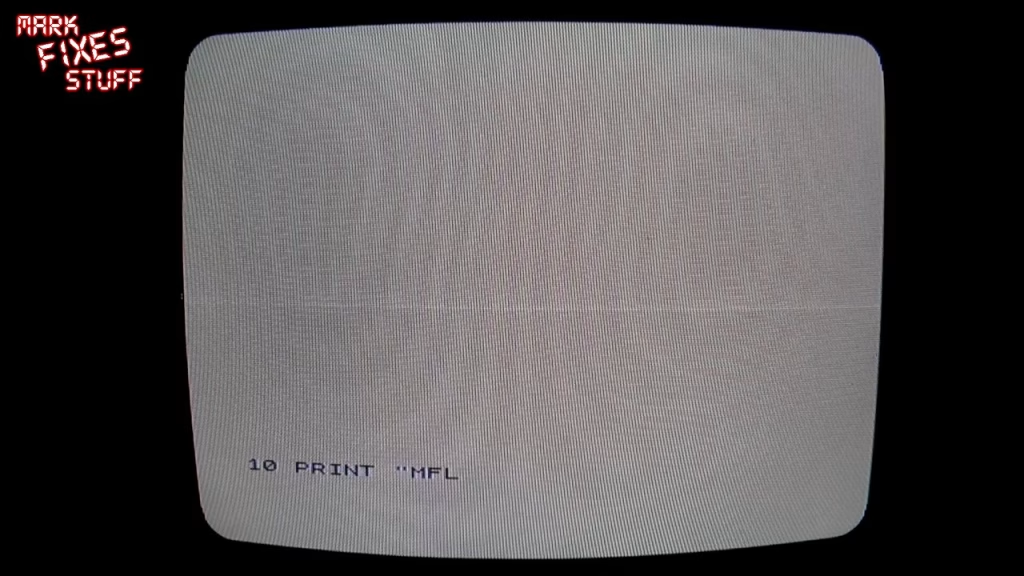
For the demo I typed the simplest masterpiece possible:
- 10 PRINT “MFS”
- 20 GO TO 10
It just prints MFS down the screen until you let it scroll. Any program in memory will do.
Step 2: point the virtual tape at a .tap file with TAPE OUT
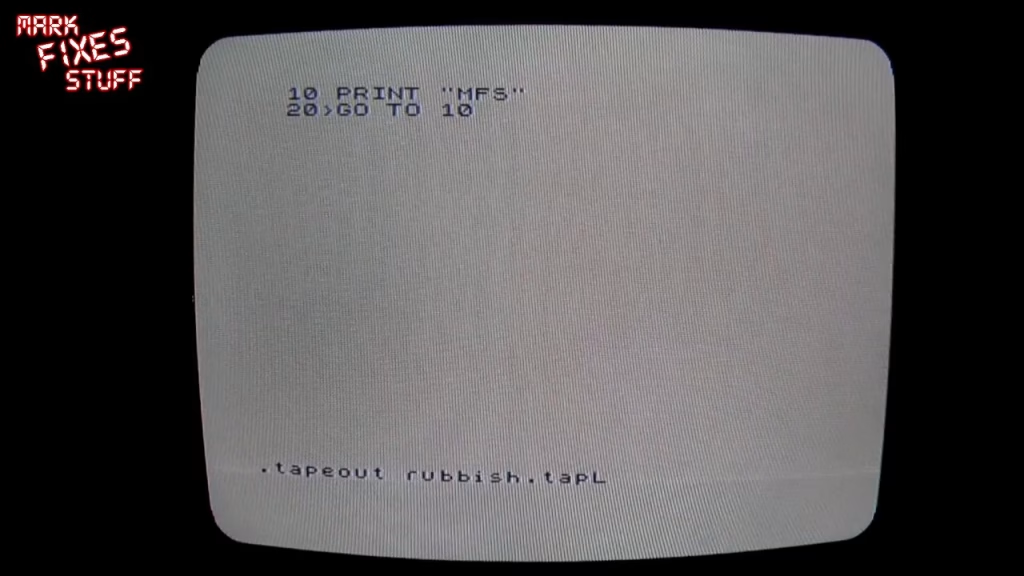
ESXDOS commands start with a full stop, which you get with Symbol Shift and M. Typing the full stop first stops the Spectrum turning your key presses into tokenised keywords, so you can spell the command out letter by letter. Then type:
.tape out rubbish.tap
and press Enter. Keep the name to eight characters: ESXDOS didn’t support long file names when I recorded this. That might change, though long file names do cost a lot more memory, so who knows.
Step 3: SAVE as normal
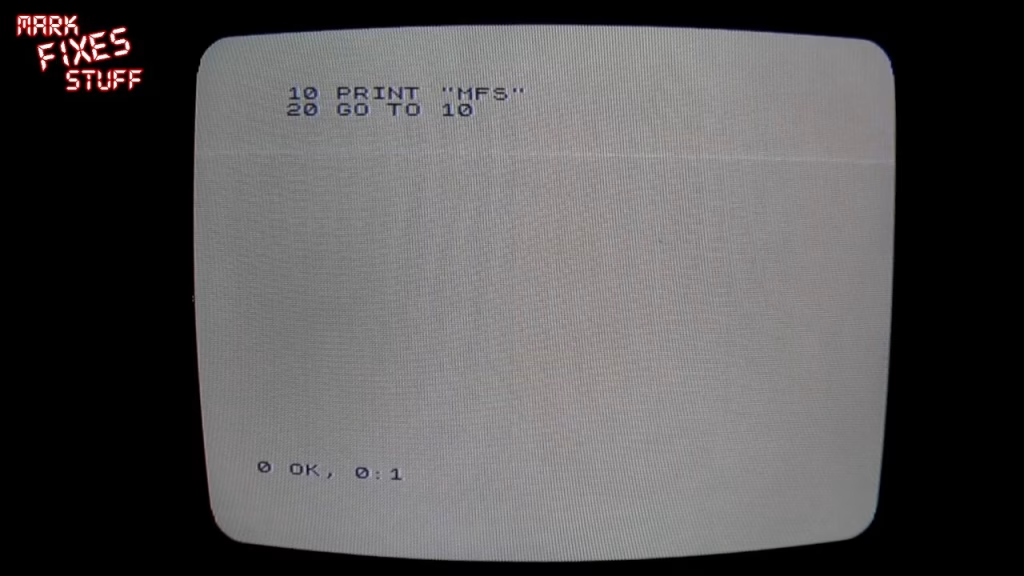
A quick LIST confirms the program is still in memory. Now just use the normal Spectrum SAVE command and give the program a name (mine was called “crap”, in keeping with the file name). When the Spectrum says “Start tape, then press any key”, press a key and the virtual tape starts on its own. The activity light on the interface flashes to show it’s writing to the card.
Step 4: prove it saved, then load it back
To show there’s no trickery, I pulled the power out of the back of the Spectrum. With memory wiped, the only place that program can be is the SD card. After plugging back in, the interface detected its devices as normal.
One thing to watch: because I only gave a file name, not a path, the .tap file went into the BIN folder, which is where the device keeps its commands. Navigate to the folder you actually want before saving. To load it back you can type the reverse (TAPE IN with the file name, then LOAD), but I used the NMI button instead, browsed to BIN at the top of the list, and selected rubbish.tap. It loaded my program immediately; RUN, Enter, and MFS scrolled down the screen again.
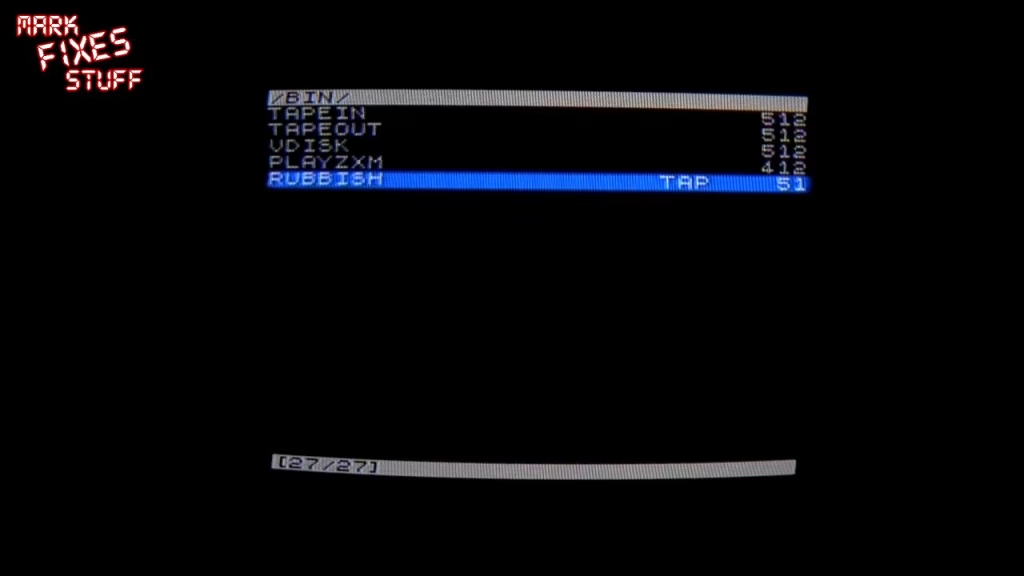
Did it work?
Yes. The program survived a full power-off and loaded straight back from the card. If you’re running ESXDOS, your SD interface isn’t just a game loader: it’s a perfectly good save device for your own BASIC.
Related
My reviews of the devices this works on: the ZaxON DivMMC, the ByteDelight DivMMC EnJOY, the PicoDivSD and the DivMMC Future.
Leave a Reply