
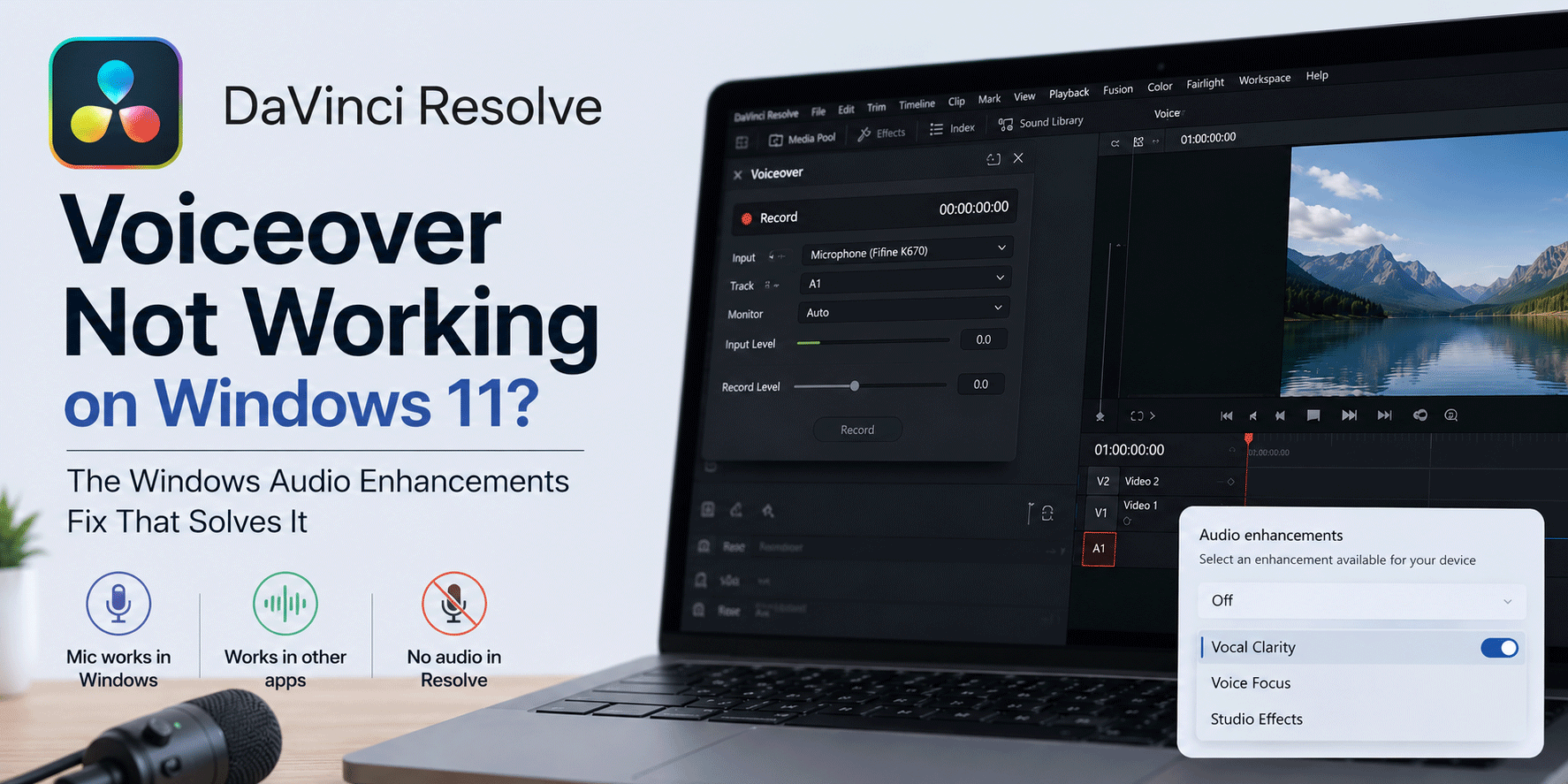
My microphone worked in Windows 11 and Audacity, but DaVinci Resolve recorded silence.
If you’ve recently updated DaVinci Resolve Studio and suddenly discovered that voiceover recording has stopped working, you’re not alone. r upgrading from DaVinci Resolve Studio 20 to the public release of DaVinci Resolve 21.
The frustrating part was that everything appeared to be configured correctly.
My microphone worked perfectly in Windows 11. It worked in Audacity. Windows 11 itself showed input levels moving, as did Audacity.
Resolve could see the microphone device. The correct input was selected. The Fairlight patching looked correct even though that isn’t needed for the Voicover feature. Yet when I tried to record a voiceover, Resolve recorded absolutely nothing, and was laggy and glitchy.
Symptoms
In my case:
- Voiceover recording on the Cut page didn’t work.
- Voiceover recording on the Edit page didn’t work.
- The Voice Booth feature in Fairlight didn’t work.
- Multiple microphones behaved exactly the same.
- Audio meters remained dead during recording.
- Laggy, glitchy timeline whilst “recording”
- The microphones worked normally in other software.
If that sounds familiar, keep reading.
The Usual Fixes Didn’t Help
Before finding the real cause, I tried most of the obvious troubleshooting steps:
- Checking Fairlight input patching
- Changing USB ports
- Testing different microphones
- Updating audio drivers
- Restarting Resolve
- Rebooting Windows
- Checking the microphone input volume.
- Verifying the correct recording device was selected
- Update my motherboard BIOS…
None of these made any difference. Windows 11 had enabled an audio processing feature called Vocal Clarity.

Disabling it and restarting Devinci Resolve 21 restored microphone recording inside DaVinci Resolve.
How To Disable Vocal Clarity
The exact menus may vary slightly depending on your sound hardware and Windows version, but the general process is:
- Open Settings
- Go to System
- Open Sound
- Select your microphone
- Look for Audio Enhancements, Signal Processing, or Vocal Clarity (towards the bottom of the page)
- Disable Vocal Clarity
- Disable any other microphone enhancement features.
- Restart DaVinci Resolve
Once I did this, voiceover recording started working again immediately upon restarting Davinci Resolve.
Other Audio Enhancements May Cause Similar Problems
Although Vocal Clarity was the culprit in my case, it’s possible that other enhancement features could interfere with Resolve as well.
Depending on your hardware, you may see options such as:
- Noise Suppression
- AI Noise Reduction
- Studio Voice
- Voice Focus
- Echo Cancellation
- Audio Effects
- Realtek Audio Enhancements
- Manufacturer-specific microphone processing
If Resolve refuses to record audio while other applications work normally, it’s worth temporarily disabling all enhancements and testing again. The enhancements can “hook” the microphone at a low level and stop Davinci Resolve getting the audio inot the editor.
Why This Is Difficult To Diagnose
The reason this issue is so confusing is that Windows still shows microphone activity. Applications like Audacity continue to record normally. The microphone appears healthy.
Nothing obvious suggests that a Windows enhancement layer is blocking Resolve from accessing the audio stream correctly. That makes it easy to spend hours looking at Fairlight patching, drivers and Resolve settings when the problem is actually elsewhere.
Final Thoughts
If DaVinci Resolve voiceover recording suddenly stopped working after updating to version 21, and you’ve already checked Fairlight patching and microphone permissions, don’t overlook Windows audio enhancements.
For me, disabling Windows 11’s Vocal Clarity feature fixed the problem instantly after hours of troubleshooting. Hopefully this post saves someone else from the same rabbit hole by spreading the solution. If this helped you, maybe check out my Youtube Videos?


Leave a Reply