
A Gotek USB floppy emulator is a cheap way to replace a tired Amiga floppy drive, but out of the box it won’t talk to an Amiga. It needs new firmware, and flashing it is where a lot of people get stuck, usually at the point where the flash loader just sits there doing nothing. This step-by-step guide shows the wiring, the reset trick that gets the ARM chip talking, and the jumper you need to set before it goes in the Amiga.
All of this relies on the excellent work of Hervé Messinger, whose Cortex Amiga floppy emulator firmware and Selector.adf disk image make it possible. You’ll find the files on his blog. Thank you, Hervé.
What you need
- A Gotek drive. When I made this video they could be had for as little as £12 posted from China, so don’t get ripped off on eBay.
- A USB to TTL serial adapter (a little over £3 at the time). I recommend an FTDI-based one: the Prolific adapters are more widely pirated, and the clones don’t work with the latest drivers.
- Four jumper wires. Mine were a mix of female-to-female and female-to-male; yours may differ depending on the headers you have.
- Metal tweezers or a spare bit of wire to short the reset points.
- A small USB stick (I used 1GB) for your ADF files.
- The ST Flash Loader Demonstrator software installed on a Windows PC.
Inside the Gotek
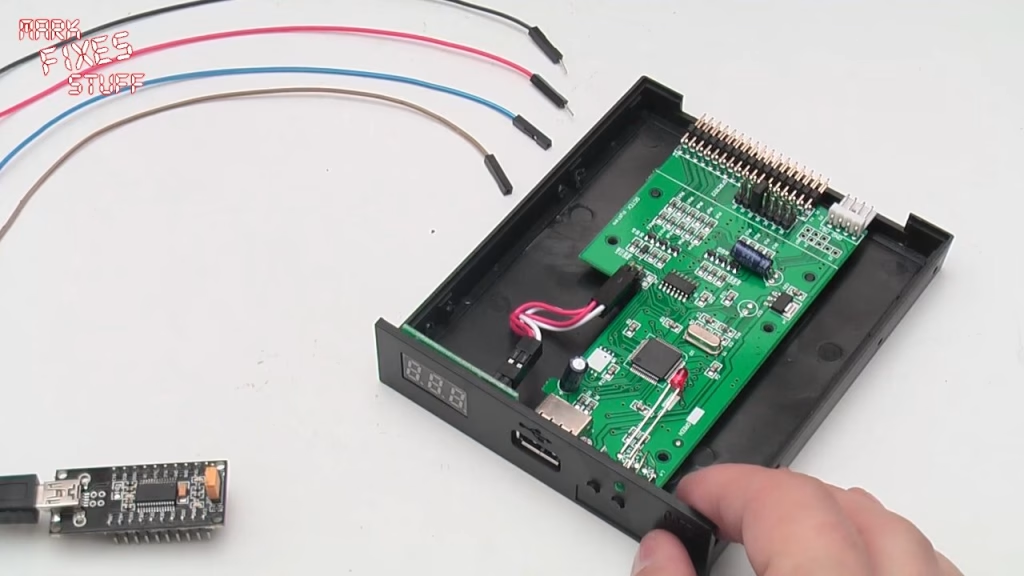
The Gotek is a simple beast: a single circuit board built around an ARM chip with 128K of programmable flash, of which Hervé’s firmware uses just under half. I always take the board out of the case when I do one of these, as it’s much easier to work on. The area we’re interested in is at the back of the board.
Write-enabling the chip and wiring up the TTL adapter
First, write-enable the ARM chip by strapping (electrically linking) two points on the board. I pushed a few strands of copper wire through the holes and twisted them tight on the back. The board is well insulated, so it’s hard to bridge the wrong connections.
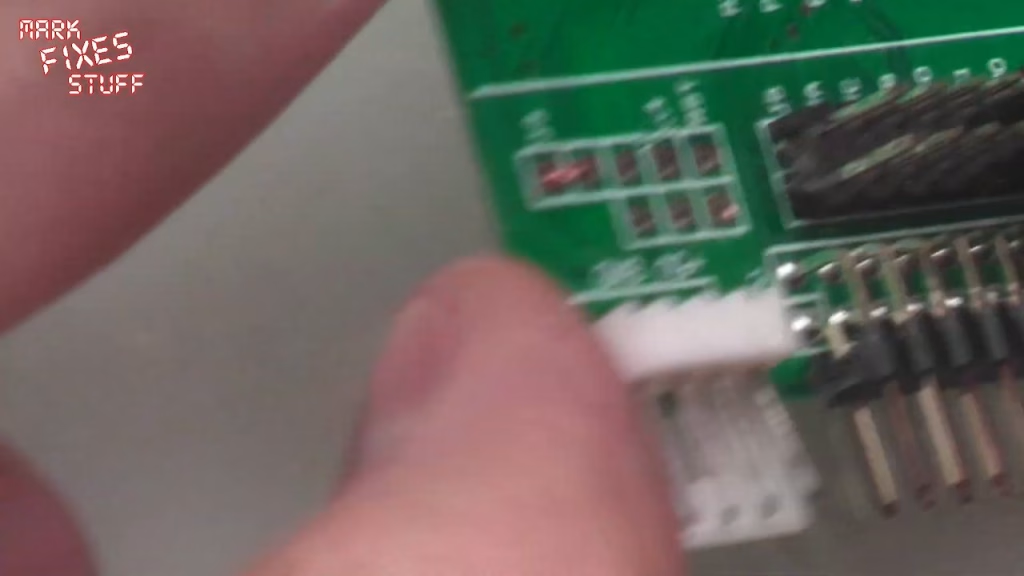
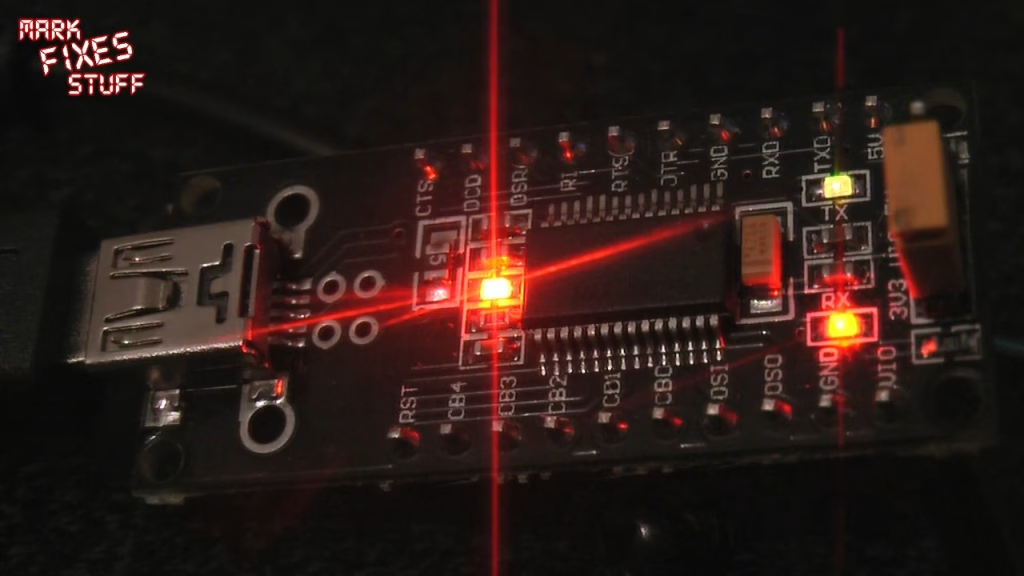
Next to those are the RX and TX points for the serial connection and two reset points. There’s also a 5V pin and two ground pins on the power connector: ground can go on either, but it’s good practice to keep it one pin away from the 5V. On the FTDI adapter you need four pins (I’d added headers, but you can wire straight into the holes):
- 5V to the Gotek’s 5V power pin (brown wire in my case)
- GND to the Gotek’s ground (blue)
- TXD to the Gotek’s serial header (black)
- RXD to the other serial point (red)
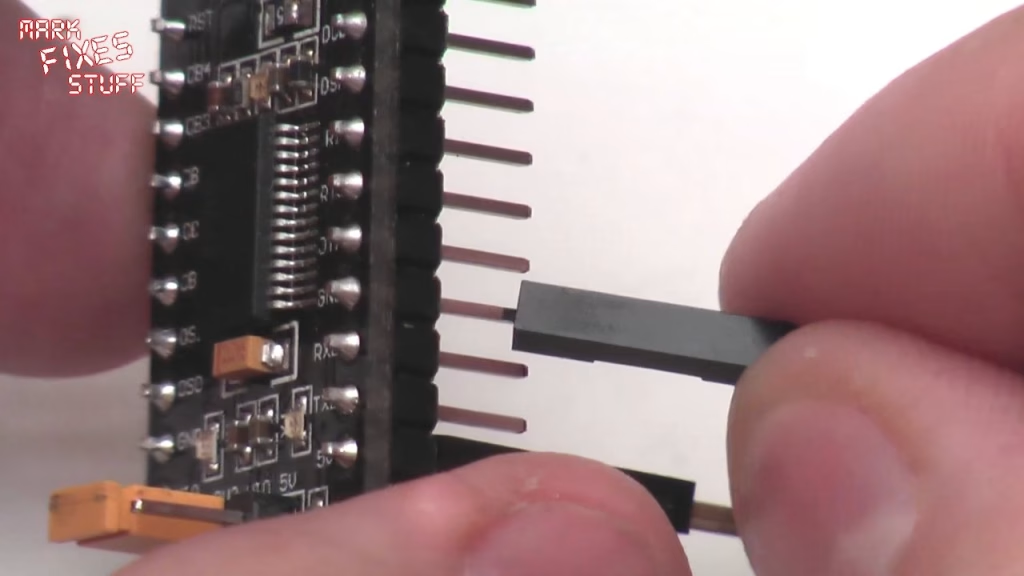
Most TTL adapters have a jumper marked 3.3V (or 3V3) and 5V. That sets the logic level used to talk to the chip, not the voltage on the 5V pin powering the drive. It should be on 3.3V, although the ARM chip is tolerant enough that getting it wrong isn’t a disaster. Plug the adapter in and its light confirms it has power.
Why does the flash loader hang? The reset trick
In Windows, check Devices and Printers to find the adapter and its COM port. Many default to a slow 9600 baud, and I leave it there. Open Flash Loader Demonstrator, pick the COM port, set 9600 baud and leave everything else at default.
This is where it all goes wrong for a lot of people: you click Next and the program freezes. It can’t talk to the Gotek’s bootloader because the chip hasn’t been reset. The fix is to bridge the two reset points with the tweezers, count to three, let go, and do it once more. Click Next and it connects.
You’ll get a warning that removing protection will mass erase the flash. That’s expected: the original firmware is read protected. After the reset the target shows as readable (meaning blank) with a 128K flash, and the connectivity line 128K device is selected. Click through to Download to device.
Flashing the Cortex firmware
Extract Hervé’s archive somewhere easy to find (I used the desktop). The firmware lives in the firmware folder as a .hex file. When you browse to it, the dialog defaults to looking for S19 files, so the folder looks empty: switch the file type to hex and it appears. Leave “Erase necessary pages” and “Verify after download” selected, and don’t enable flash protection. Click Next.
The lights on the Gotek flash as it writes. At 9600 baud it’s slower than it could be, but I prefer slow and reliable, and I’ve not had one time out yet. When it finishes you should see “Download operation completed successfully”.
Preparing the Gotek for the Amiga
- Copy Selector.adf from the archive to the root of the USB stick, along with your (legal) ADF images.
- Move the S1 jumper to S0 if it’s replacing DF0, the internal drive. Left on S1 it appears as DF1, which is handy for an external drive.
- When fitting it, the red stripe on the floppy cable goes to pin 1 (marked P1), or it won’t work.
- Remove the programming wires and the strap. Don’t forget the strap: I made a right mess of mine and had to pick out a stray strand.
Did it work?
Yes: the flash completed successfully and the Gotek was ready to go into the Amiga in place of the floppy drive. From there it’s a case of inserting the USB stick, booting, and using the selector menu, which is quite easy. I didn’t cover usage in this video, as that meant setting up the capture card.
Related
More Amiga on the site: burning Amiga Kickstart ROMs with a TL866, cloning an Amiga hard drive, the A600 chip RAM expansion build and the AmigaDOS manual PDF download.
Leave a Reply